Bookstack
BookStack is the ideal platform for your knowledge base and for storing and organizing information and documentation. Details for BookStack can be found on the official website at bookstackapp.com.
It is an opinionated wiki system that provides a pleasant and simple out-of-the-box experience. New users to an instance should find the experience intuitive, and only basic word-processing skills should be required to get involved in creating content on BookStack. The platform provides advanced power features to those that desire it, but they should not interfere with the core simple user experience.
Note: at Cloud68.co we do NOT develop this software and all the names and trademarks of the software are owned by the entity behind the project.
Software update frequency
For information about the way we handle software updates, please visit https://docs.cloud68.co/books/faqs-tech-support/page/scheduled-maintenance-software-updates.
Group managment when using Bookstack with Keycloak
Bookstack supports OIDC protocol and if you decide to use Keycloak as Single Sign On for Bookstack you can also assign users to Bookstack roles via Keycloak.
Keycloak can not automatically create the roles on Bookstack so the first step is to create the roles on Bookstack.
In order to manage users and groups via Keycloak you will need to follow the steps below:
1 - Go to the Bookstack admin panel
https://<your-bookstack-domain>/settings/roles and click Create New Role. Check existing roles to get an idea of the permissions.
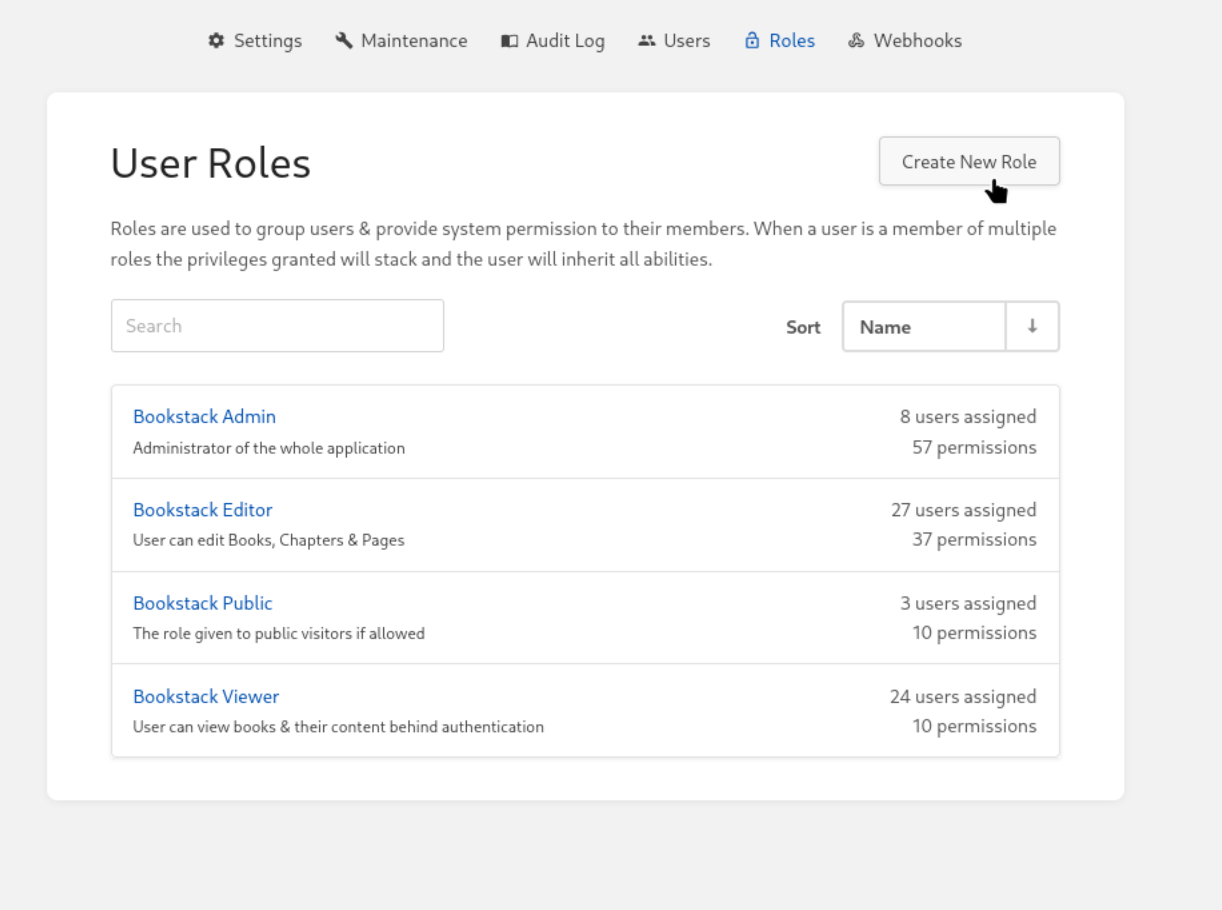
2 - Choose a name for the role. Use the pattern Bookstack + Name of the role because we will later need to create this on Keycloak and it will be easier to identify if the name of the role starts with Bookstack.
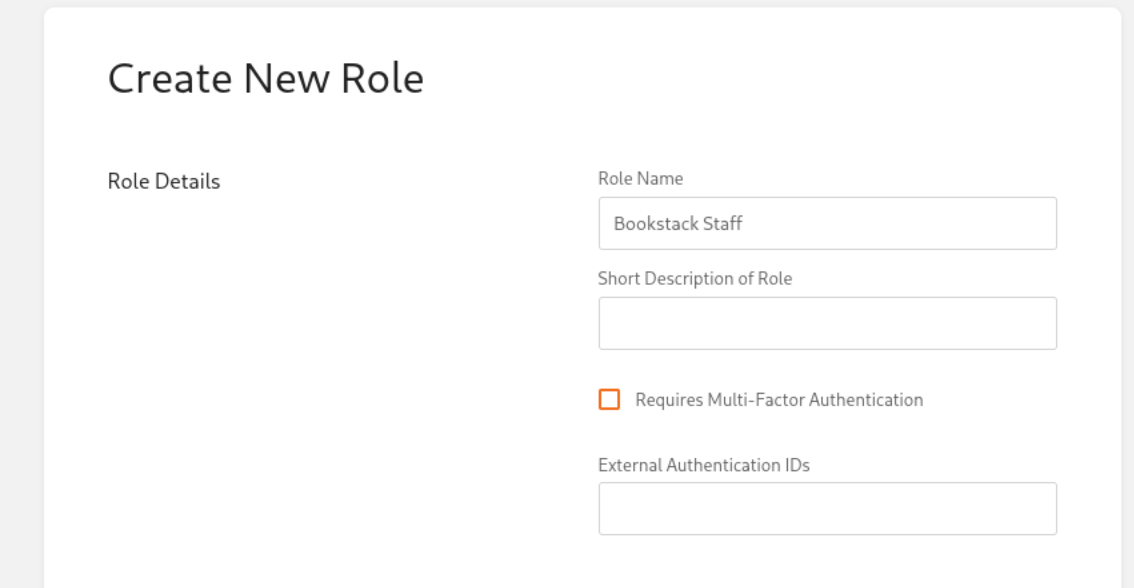
3 - Choose the permission you want members of this role to have and than click Save role.
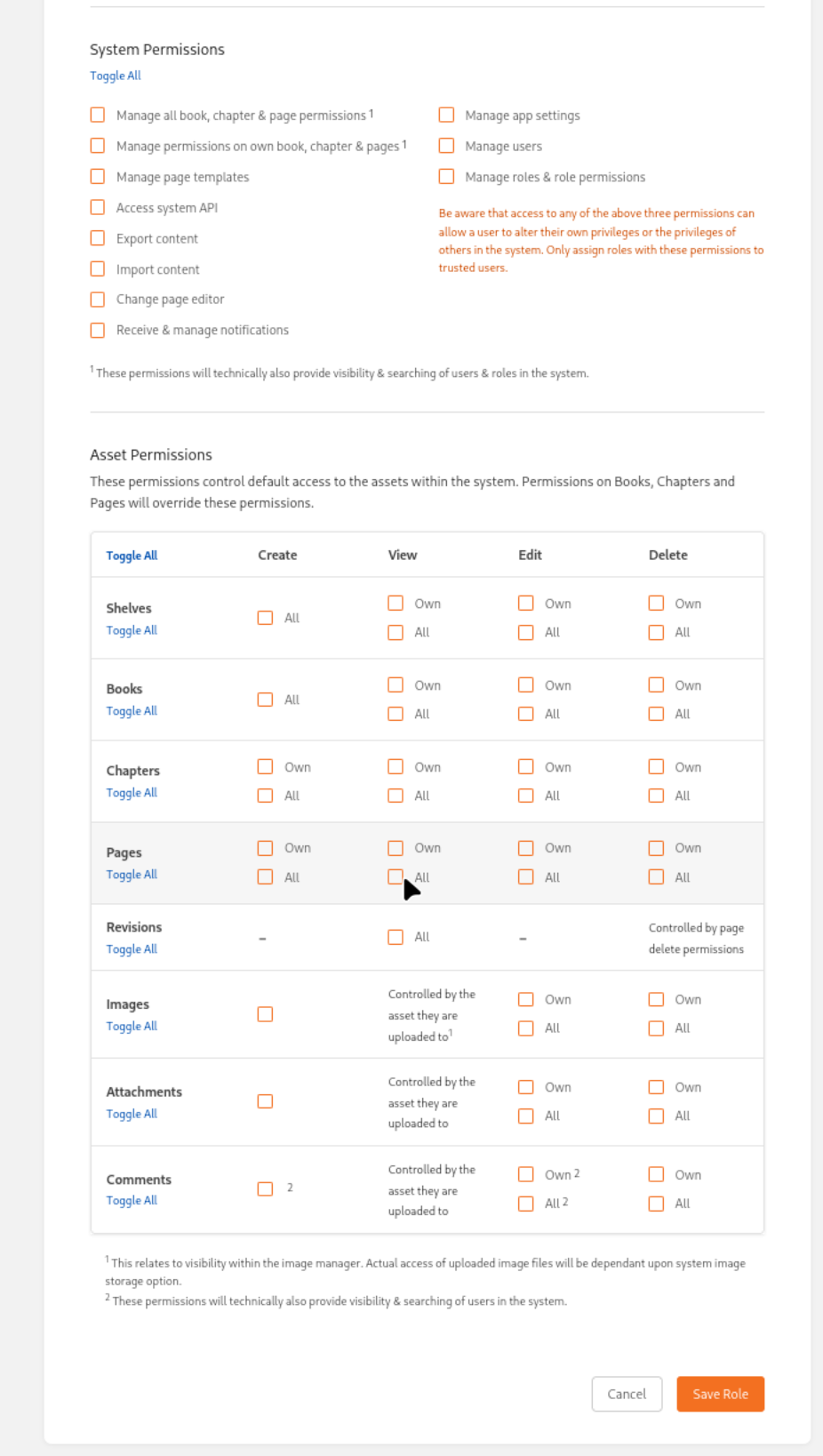
This is all that is needed to be done on the Bookstack.
4 - Now go to your keycloak admin panel
https://<your-keycloak-domain>ce.org/admin/ and click on Groups on the sidepanel
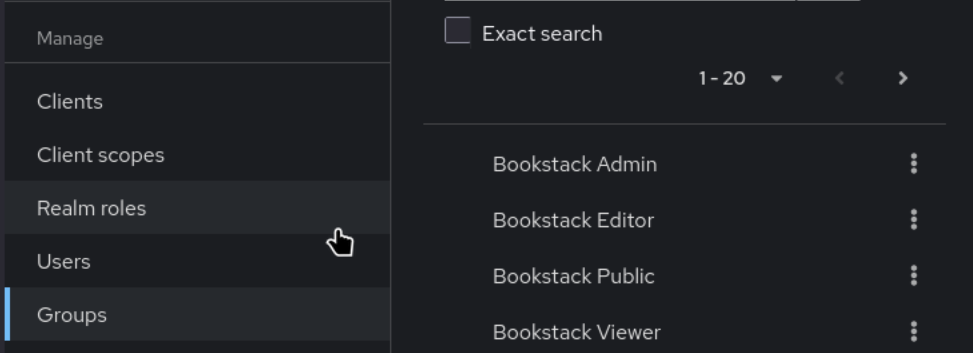
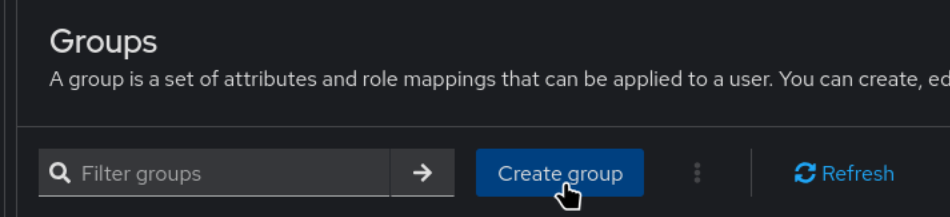
5 - Click on Create group so we can mirror the roles creates on Bookstack.
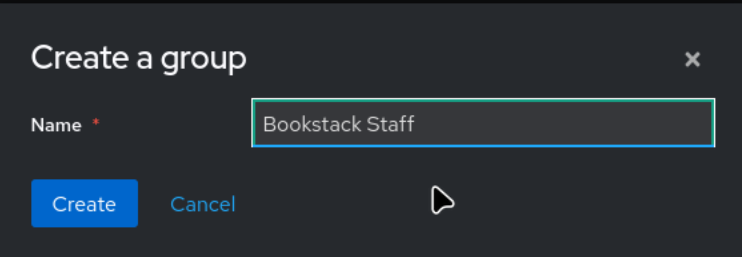
6 - Use the name you used on the Bookstack role.
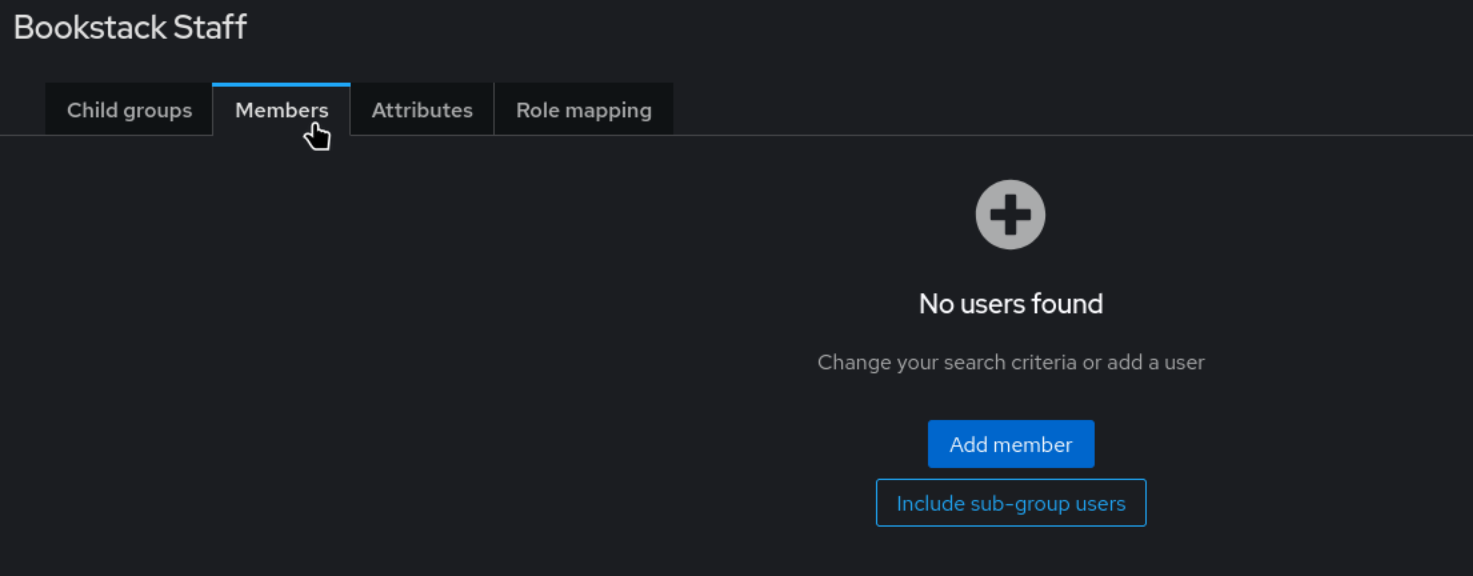
7 - Once the role on Bookstack is created and the Group on Keycloak is created all you have to do is go to Members of the group on Keycloak to add existing users to the group.
8 - For new users, assign them to the group when creating the new user. Steps on creating a new users and adding them to groups are here https://docs.cloud68.co/books/single-sign-on-sso/page/how-to-create-a-user-on-keycloak
After creating the roles with permissions on Bookstack and mirroring the group to Keycloak the user management is done on the Keycloak side. Users will need to log out and log in again in order to have the permissions of the roles they are assigned to.