Note: at Cloud68.co we do NOT develop this software and all the names and trademarks of the software are owned by the entity behind the project.
# Common issues Below are some of the most common issues some of our subscribers have reported. We will update this page with more such issues as reported from our Subscribers at [support.cloud68.co](https://support.cloud68.co/), our support portal. ### 1. too many failed login attempts to Nextcloud As every other modern platform, Nextcloud is also built with security in mind. One security element is brute-force protection. When you fail to log in multiple times in a short period of time, then the brute-force protection is triggered, and you will a message similar to it below. [](https://docs.cloud68.co/uploads/images/gallery/2023-01/sMgTPIHegJBPshdV-nc-too-many.png) To unlock your account, you will need to open a support ticket by emailing to support@cloud68.co and provide your public IP address. In case you don't know your public IP address, you can search on one of your favorite search engine for "my IP address". If you wish to learn more about brute-force attacks, you can check out this Wikipedia article, [https://en.wikipedia.org/wiki/Brute-force\_attack](https://en.wikipedia.org/wiki/Brute-force_attack). ### 2. enter password prompt when using SSO As a protective measure, Nextcloud will prompt admin to enter their password when they e.x install a new app and haven't logged in in a while. An issue arises on Nextcloud instances that are using SSO (SingleSignOn). Since the authentication is handled by the SSO users on Nextcloud do not "really" have a password instead they have an authentication token. This means that you can't enter your SSO password on the prompt and have it confirmed. To solve this issue two possible workarounds exist. 1. Open a new support ticket, and we will handle the operation for you. (The admin account we have is created from the CLI so is not part of SSO) 2. Log out of your instance and log back in again. # Installing Nextcloud apps #### What are Nextcloud apps? Nextcloud apps from their name are "mini applications" that extend the functionality of Nextcloud. Nextcloud has a set of core application which come installed by default when Nextcloud is installed, but it also has hundreds of other applications developed by the community to add features and integration. The applications can be found [https://your-nextloud-url/settings/apps/discover](https://cloud.climatejusticealliance.org/settings/apps/discover) #### [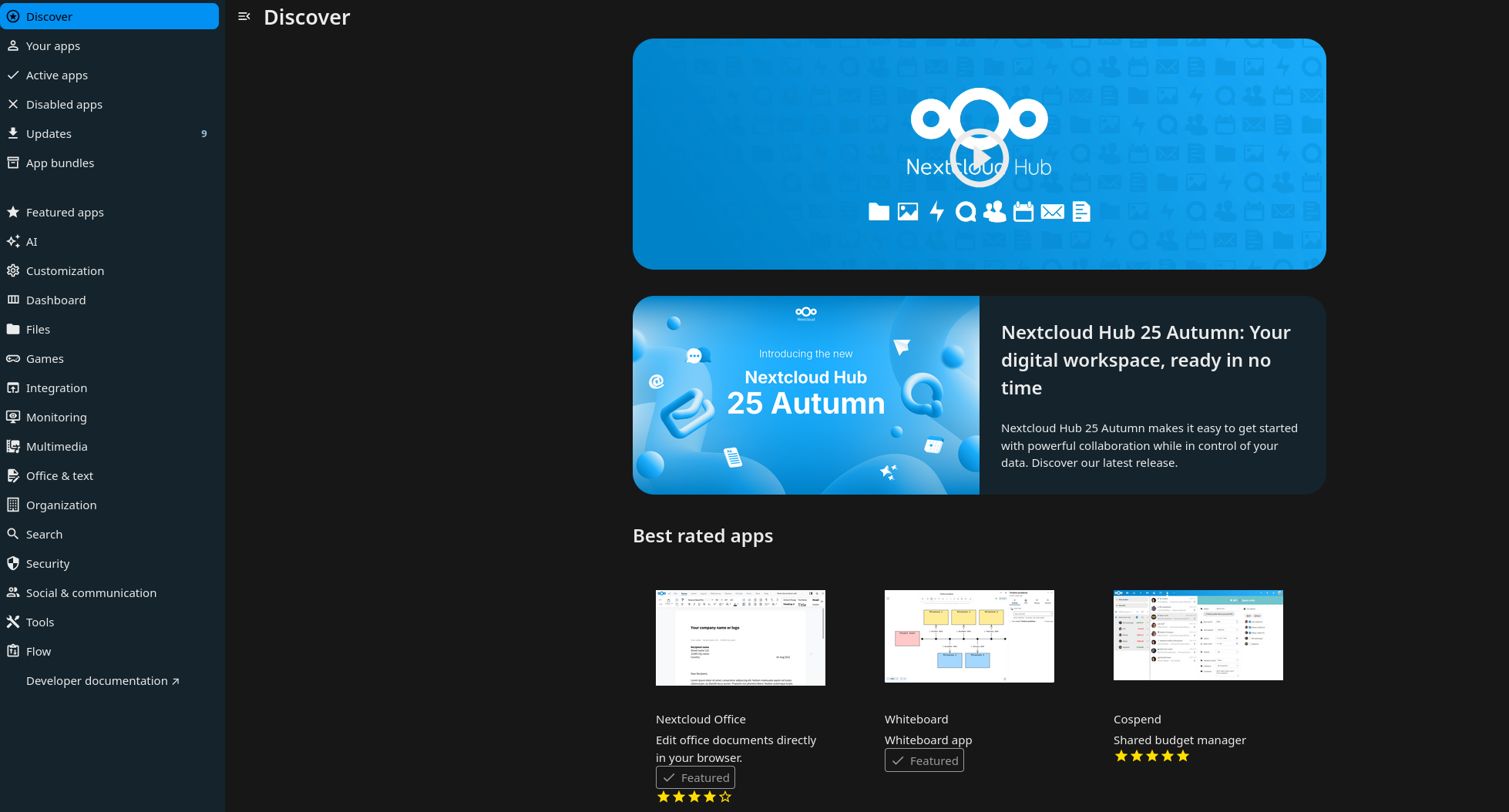](https://docs.cloud68.co/uploads/images/gallery/2026-01/xMFIbm2PPtTRcCqW-image.png) #### How can I install an app? To install an app, your account will need to have admin permissions. If you don't have admin permissions, you can ask your it admin or your colleague that is in contact with us to install the app you need. If you have an admin account, you can install the app by following the steps below: 1\. Login into your account 2\. Click your profile on the top right corner [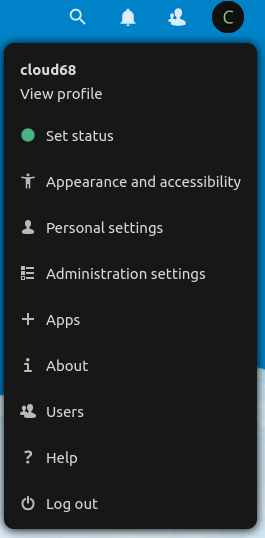](https://docs.cloud68.co/uploads/images/gallery/2023-01/tdfiPGAaIVZqlon1-screenshot-from-2023-01-24-13-10-58.png) 3\. Click apps 4\. Search for the app you need by clicking the loop icon or by pressing CTRL+F on the keyboard [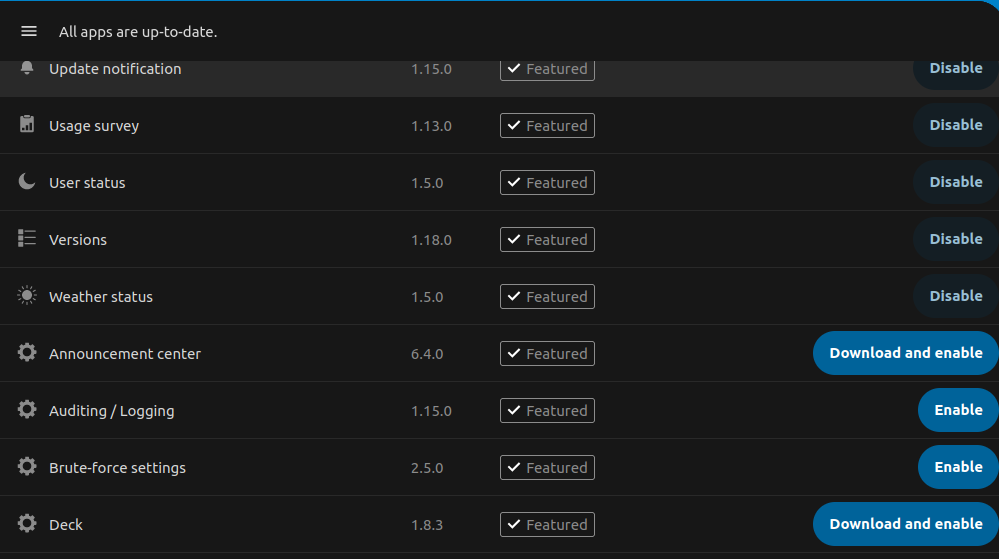](https://docs.cloud68.co/uploads/images/gallery/2023-01/SAHjEYvtKCxmKnMS-screenshot-from-2023-01-24-13-13-14.png) 5\. Click install and enable Generally speaking you should be able to install any app, some apps are marked as untested. We suggest for you to not install them, but if you really need it, please open a support ticket, so we can test it for you. We propose this because some untested apps can make your instance inaccessible, thus you are unable to remove the conflicting app. # Nextcloud + OnlyOffice OnlyOffice, stylized as ONLYOFFICE, is a free software office suite developed by Ascensio System SIA, a company headquartered in Riga, Latvia. It features online document editors, platform for document management, corporate communication, mail and project management tools. Website: [https://www.onlyoffice.com](https://www.onlyoffice.com/). ### Nextcloud and OnlyOffice packages With every Nextcloud Medium+ package you receive also access to our OnlyOffice deployment: [https://cloud68.co/instances/nextcloud#pricing](https://cloud68.co/instances/nextcloud#pricing). ### Limitations with OnlyOffice ONLYOFFICE officially offers different versions of its online document editors packaged as ONLYOFFICE Document Server: Community, Enterprise and Developer editions. Since, the Enterprise editions are proprietary offers, we only offer OnlyOffice Community edition. ##### To review the details of the limitations of the OnlyOffice community edition please visit: [https://www.onlyoffice.com/en/compare-editions.aspx](https://www.onlyoffice.com/en/compare-editions.aspx) Mobile editing limitations Currently, it is not possible to edit documents on mobile if your instance is using OnlyOffice. Mobile editing was possible on previous releases of OO, but it was removed and after a community backlash it was added just to be removed again and to be released as a paid feature. You can read more on this thread [https://github.com/ONLYOFFICE/DocumentServer/issues/805](https://github.com/ONLYOFFICE/DocumentServer/issues/805) If your team was previously editing on desktop and now is moving more to editing on mobile devices. We would suggest opening a support ticket and request for your instance to connected to our Collabora server. If you really need to edit on mobile on OnlyOffice, you can check their prices here [https://www.onlyoffice.com/workspace-prices.aspx#workspace-on-premises](https://www.onlyoffice.com/workspace-prices.aspx#workspace-on-premises) # Nextcloud + Collabora Online Collabora Online is an open source online office suite that can be integrated into any web application, it is developed by Collabora Productivity, a division of Collabora. Collabora Online has LibreOffice at its core, it allows collaborative real-time editing of word processing documents, spreadsheets, presentations, and vector graphics. It is a powerful online office suite that supports all major document, spreadsheet and presentation file formats, which you can integrate in your own infrastructure. Key features are collaborative editing and excellent office file format support. ### Nextcloud and Collabora Online Nextcloud Starter packages offered from our team include Collabora Online. ### Limitations with Collabora Online Our Collabora Online deployment as part of the Nextcloud Starter packages has a limitation of up to 10 documents, and 20 connections - to avoid the impression that it is suitable for deployment in large enterprises. For more info about this and user comments, visit: [https://help.nextcloud.com/t/collabora-document-limitation-by-purpose-10docs-20connections/4425](https://help.nextcloud.com/t/collabora-document-limitation-by-purpose-10docs-20connections/4425) # Nextcloud Talk By default, Nextcloud Talk uses Nextcloud's STUN server to establish peer-to-peer connections, as detailed in the official Nextcloud Talk documentation. The TURN server functions as a fallback solution and, based on our experience with Nextcloud Talk, is typically not required for most use cases. However, since internet service providers (ISPs) vary in their infrastructure configurations, we cannot guarantee that all meeting participants will be able to use Talk without potential connectivity issues. ### Available Solutions #### TURN Server Integration We maintain a TURN server primarily for BigBlueButton that can be quickly configured for Nextcloud Talk if needed. This integration can be implemented upon request. #### Participant Limits - 2 - 5 participants: Should work well with the default configuration; - More than 10 participants: Nextcloud recommends using their High Performance Backend (HPB), which requires a paid license. ### Recommendations #### Testing Approach We recommend initially testing Nextcloud Talk without a TURN server configuration. Please notify us if any users experience connectivity issues. In our experience, performance may decline with groups larger than 4-5 participants without additional infrastructure. ### Licensing Considerations The HPB license from Nextcloud supports ongoing development of the platform, which makes business sense for Nextcloud as a company. However, this licensing model may not be ideal for smaller teams. ### Alternative Solution Stack For teams requiring robust communication tools, we often recommend our integrated solution stack: - Nextcloud - File sharing and collaboration; - Mattermost - Team chat and messaging; - BigBlueButton - Video conferencing and webinars. This combination provides solid communication capabilities while working around the limitations of individual solutions. # Nextcloud data encryption with Server Side Encryption While we of course can't (and don't want to) prevent you from enabling, we would like to caution you to take into consideration the following: **Server Side Encryption** provides protection for data on 'external storage' (using external storage app) as the files are encrypted before being uploaded to external storage, and the keys never leave the Nextcloud server. When external storage is not used and a server-wide key is used (which is often the case in our configurations), server side encryption would only cause additional overhead, not just in terms of performance, but also size, as encryption adds more data to files and therefore makes them bigger. In addition, we've also observed some pretty nasty cases of the encryption feature breaking down, and it usually isn't that pretty because in one of our experiences, it has caused a week of downtime. So, unless you're using external storage for Nextcloud, we'd recommend leaving it off. If what you're looking for is more towards end-to-end encryption (meaning files are encrypted before even being uploaded to Nextcloud), while there is [https://apps.nextcloud.com/apps/end\_to\_end\_encryption](https://apps.nextcloud.com/apps/end_to_end_encryption), its reviews are ... not positive. Some of our subscribers have had success using [https://cryptomator.org/ ](https://cryptomator.org/) though! Documentation how to enable E2EE: [https://docs.cloud68.co/books/open-source-software-instances-faqs/page/nextcloud-data-encryption-with-e2ee ](https://docs.cloud68.co/books/open-source-software-instances-faqs/page/nextcloud-data-encryption-with-e2ee "https://docs.cloud68.co/books/open-source-software-instances-faqs/page/nextcloud-data-encryption-with-e2ee")Documentation how to enable Cryptomator: [https://docs.cloud68.co/books/open-source-software-instances-faqs/page/nextcloud-data-encryption-with-cryptomator ](https://docs.cloud68.co/books/open-source-software-instances-faqs/page/nextcloud-data-encryption-with-cryptomator "https://docs.cloud68.co/books/open-source-software-instances-faqs/page/nextcloud-data-encryption-with-cryptomator") # Nextcloud data encryption with Cryptomator Cryptomator allows you to store encrypted vaults inside your Nextcloud, so you are basically using Nextcloud as remote storage. The data is encrypted locally and only decrypted locally through the Cryptomator app. It works well and is easy to set up, but by using it, Nextcloud becomes just a remote drive. You lose all collaboration, no file sharing, no co-editing, nothing that depends on the Web UI. ##### **This tutorial will show you step by step how to create a Cryptomator vault on Nextcloud.** Before starting with Cryptomator you have to add your Nextcloud account your Nextcloud Desktop client and set up the local folder where the data will be stored. Example below: [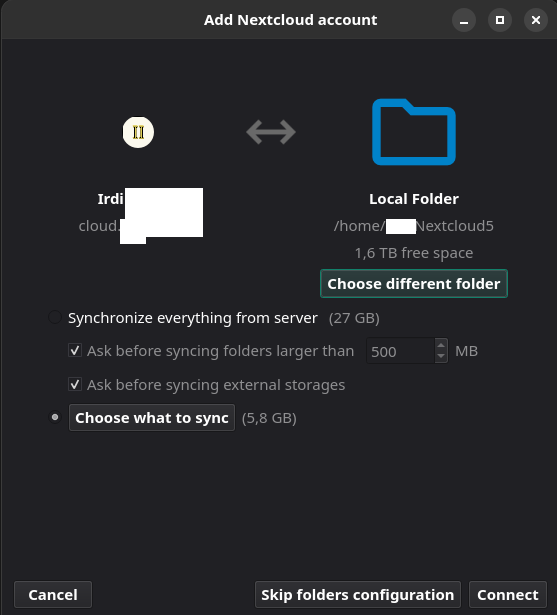](https://docs.cloud68.co/uploads/images/gallery/2026-01/9bZcD6TzLbc9zRnE-upload-a49d5bc97071aadcd8690ac54d27600d.png) By clicking the folder icon in the top right corner of the client you will go inside the folder where the data is stored. [](https://docs.cloud68.co/uploads/images/gallery/2026-01/vkF3xhuHPIKnpQXD-upload-b0f4c873fbbdf14eea818d8120254316.png) Create a folder and name it Cryptomator. In matter of seconds you will see the folder appear on Nextcloud. [](https://docs.cloud68.co/uploads/images/gallery/2026-01/rhQQaNYj98fTFiAf-image.png) Now that we have prepare Nextcloud, we continue with the Cryptomator steps. Download and install Cryptomator. https://cryptomator.org/for-individuals/ After installing Cryptomator, open it and click the + sign in the bottom left corner to add a vault and click Create New Vault. [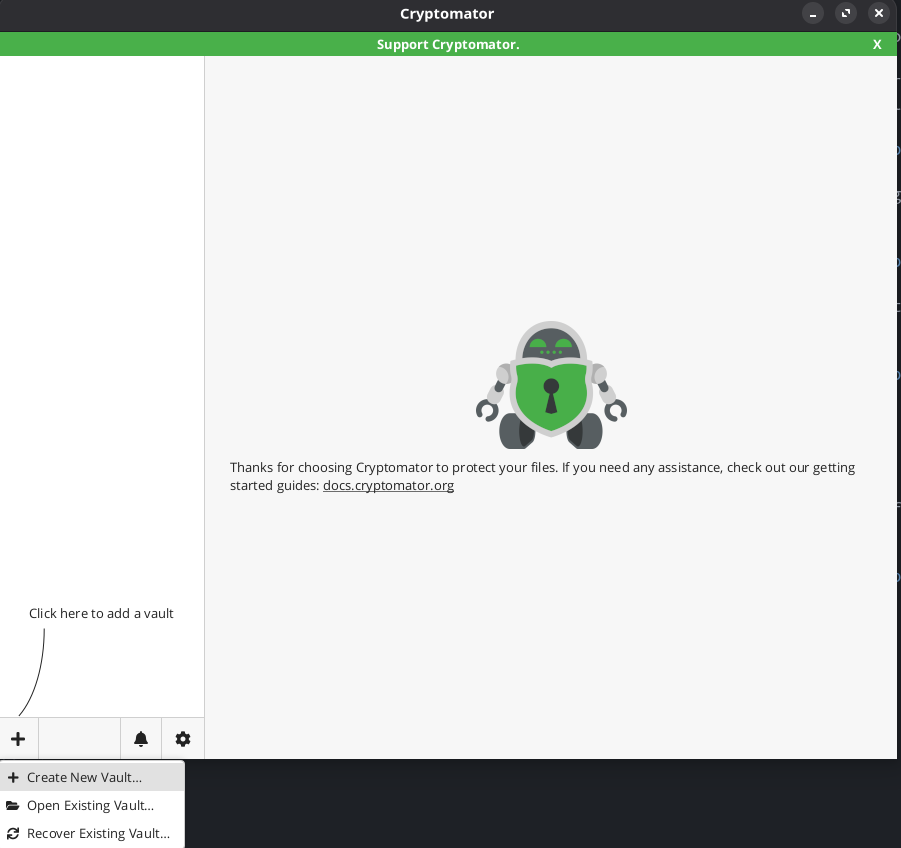](https://docs.cloud68.co/uploads/images/gallery/2026-01/dmyB1gdXibBAYcTU-image.png) Choose a name for the Vault. [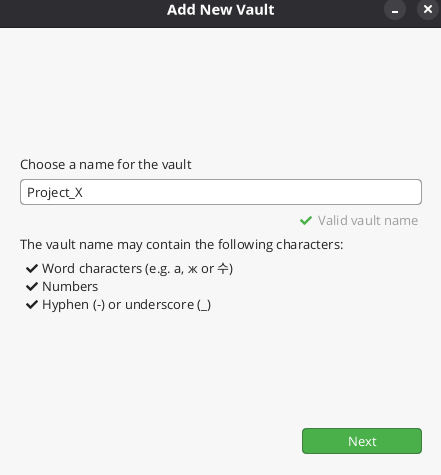](https://docs.cloud68.co/uploads/images/gallery/2026-01/BKsKxNmom7q9rkvZ-image.png) Next click Choose custom location and Choose the Cryptomator folder you created earlier. [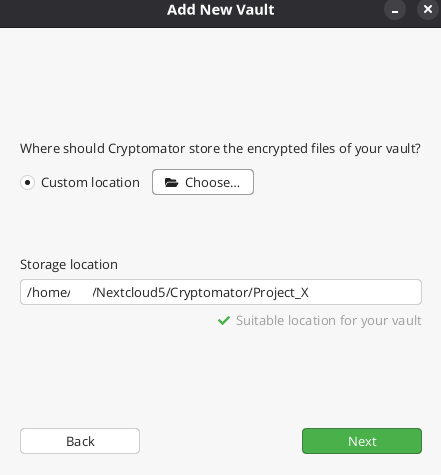](https://docs.cloud68.co/uploads/images/gallery/2026-01/SM1y89EraWCIfXe2-upload-4c1d7a4e8578b0d6cae7ac8533a47e00.png) Next step is to create a strong password. **Do not forget to Yes on the recovery key because without it, if you lose your password you lose access to your data.** [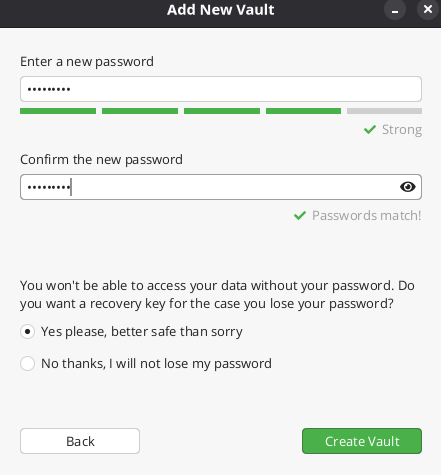](https://docs.cloud68.co/uploads/images/gallery/2026-01/uBVQGrIQNeOSc0TA-image.png) After setting up your strong password, click Create Vault. **Make sure to write down and save the recovery key.** [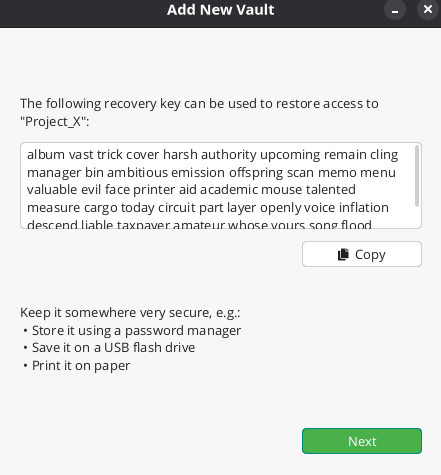](https://docs.cloud68.co/uploads/images/gallery/2026-01/qxe2sPyY7Xw860xv-image.png) Once you save the recovery key, click unlock now. [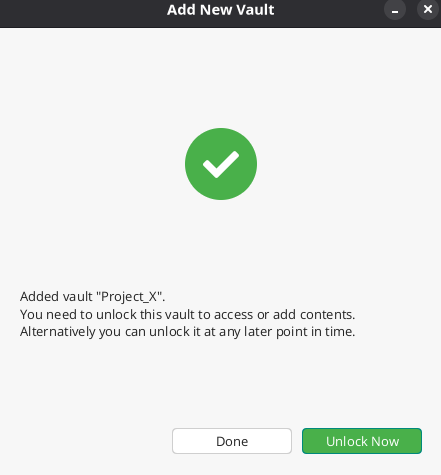](https://docs.cloud68.co/uploads/images/gallery/2026-01/w5h3IATTwZGYxatK-image.png) And you will be asked to use your password. [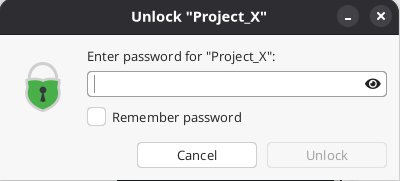](https://docs.cloud68.co/uploads/images/gallery/2026-01/vOKgUq8sBtq1Rb3p-image.png) Once the vault is unlocked you will see green button, Reveal Drive. When clicked it opens the folder that you will use to upload the data. Data uploaded there is synced to Nextcloud. [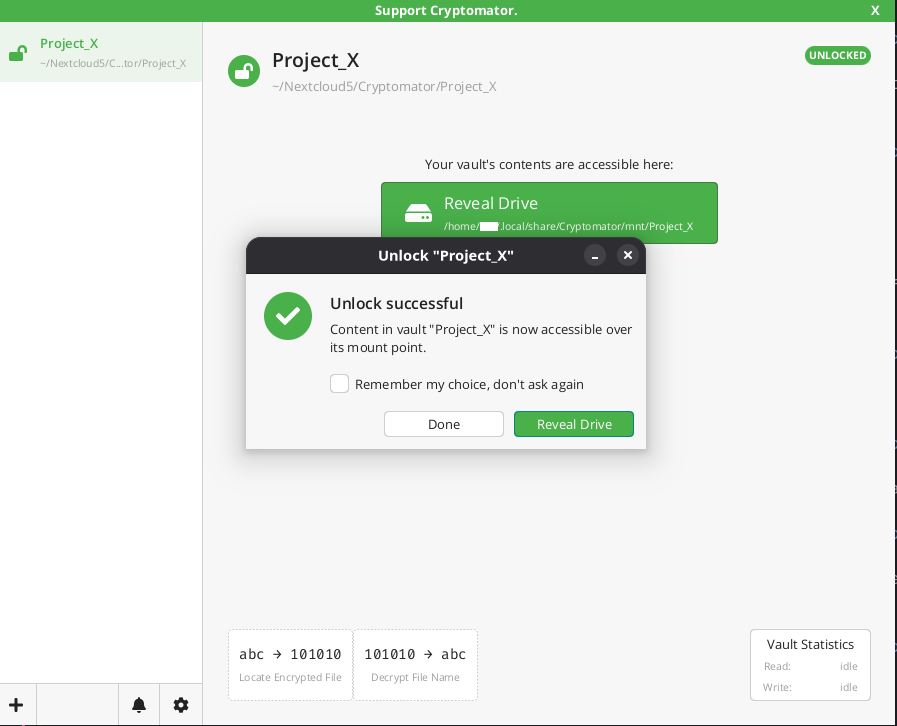](https://docs.cloud68.co/uploads/images/gallery/2026-01/SVJ6OZZLJG1KCvLn-upload-aa4c37e8ea602ed29ad893c14b4d86ae.png) When clicked it opens the folder that you will use to upload the data. Data uploaded there is synced to Nextcloud. [](https://docs.cloud68.co/uploads/images/gallery/2026-01/8iv3VhBOvtnngeHv-image.png) Below you can see how the Test document upload on the local folder above looks on Nextcloud upon encryption. [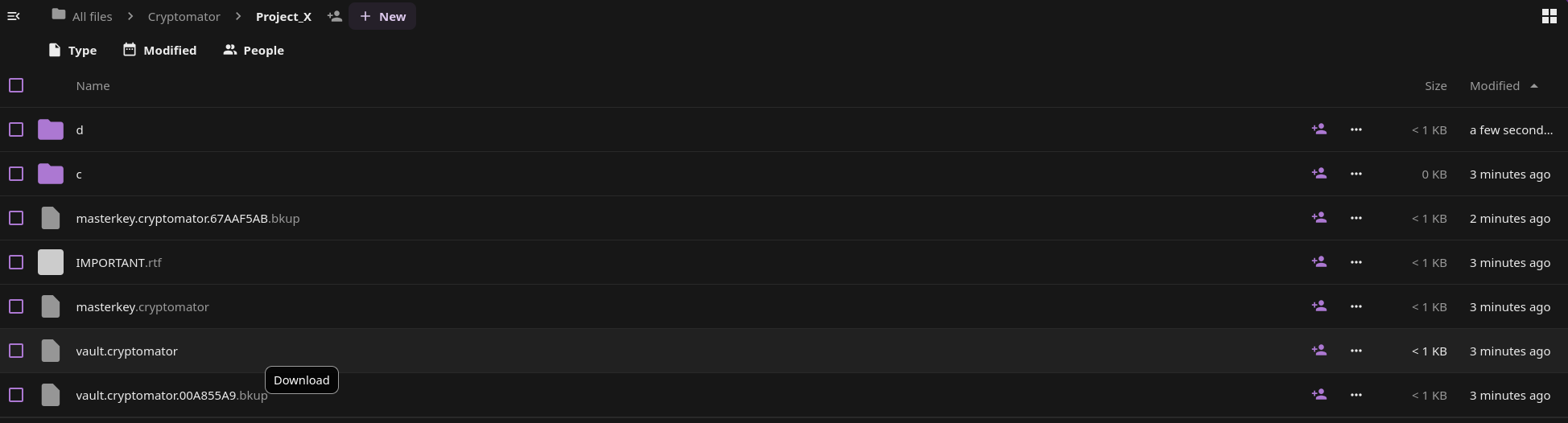](https://docs.cloud68.co/uploads/images/gallery/2026-01/JnKNG7ODfqCONhpl-image.png) Cryptomator uploads encrypted data to Nextcloud and you can decrypt them locally to see and use.Two important things to keep in mind: 1 - Write down or save in a password manager the mnemonic because without it, you lose access to your data. 2 - Make sure to have a full backup of the data before encrypting them so if something goes wrong you have a copy to roll back to.
# How to create a Nextcloud App Password When using Nextcloud with [Keycloak](https://docs.cloud68.co/books/single-sign-on-sso), Nextcloud does not have a password which sometimes causes issues when configuring the Nextcloud Desktop app or CalDav. In order to bypass this Nextcloud has introduced App Passwords. This gives the possibility to generate a dedicated password for configuring the Nextcloud Desktop app or any third party apps. #### How to create an App Password To generate an App Password you have to go under User Settings https://**your.nextcloud**/settings/user/security (replace **your.nextcloud**/ with your domain). Write a name under App name and click Create new app password. Use that password to configure the Nextcloud Desktop app or CalDav on your devices. [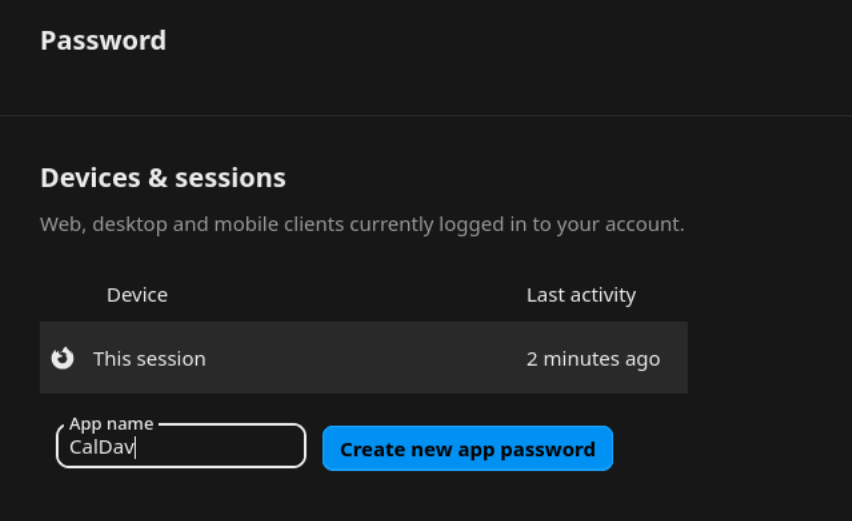](https://docs.cloud68.co/uploads/images/gallery/2026-03/QTDTF97ndRStn4Sl-image.png) # How to add a New User to Nextcloud To create a new user in Nextcloud follow the steps below. Go to Account by clicking on your profile icon on top right corner of your Nextcloud. [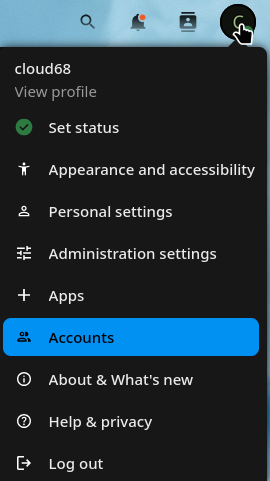](https://docs.cloud68.co/uploads/images/gallery/2026-03/caPb3gT4f2hFZwsw-image.png) Click New Account. [](https://docs.cloud68.co/uploads/images/gallery/2026-03/v4DfwwX38HCj6kT3-image.png) - Enter the new user’s **Login Name** and their **Email.** - Leave password empty so users can recieve an email to set up their own password. - Optionally, assign **Groups** memberships - Click the **Add new account** button [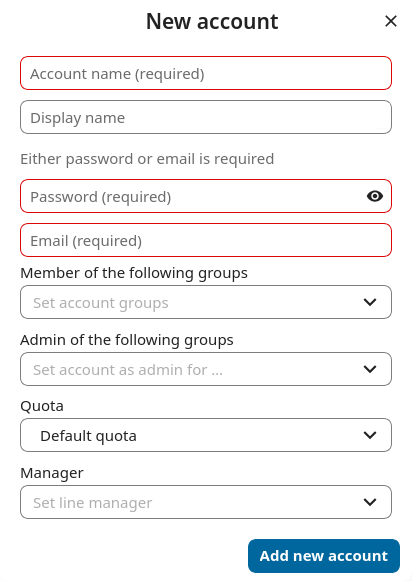](https://docs.cloud68.co/uploads/images/gallery/2026-03/opROqzw9ZT7pvXei-image.png) # Nextcloud Encryption with E2EE After you request E2EE encryption, and we enable it, you can check it under your Personal Settings - Security. It will look like the pic below. [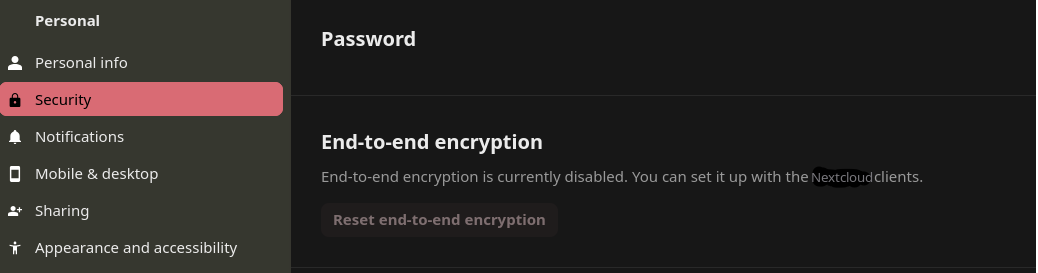](https://docs.cloud68.co/uploads/images/gallery/2026-03/PJIP0q3hX0DhkbpO-image.png) In order to activate the E2EE encryption you will have to restart your **Nextcloud Desktop Client.** Once the Nextcloud client is restarted you will see "Set up encryption" as seen in the screenshot below [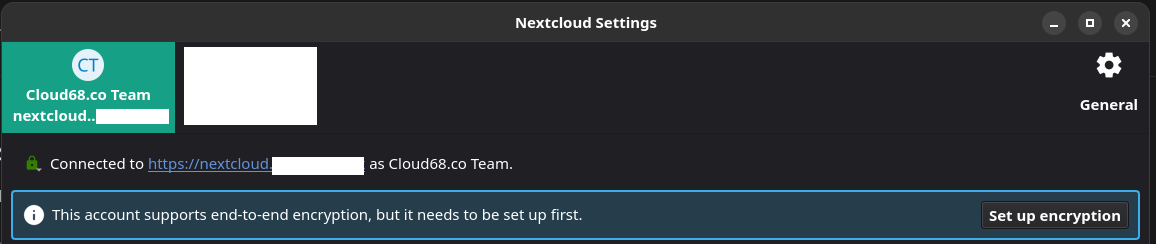](https://docs.cloud68.co/uploads/images/gallery/2026-01/YMNIkK5z5x5WFtF9-upload-d42e470c3369ce147993d1ccdd240686.png) Upon clicking "Set up encryption" it will create an End-to-End encryption mnemonic which you need to save in password manager or write it down. **If you lose this you lose access to the encrypted data.** [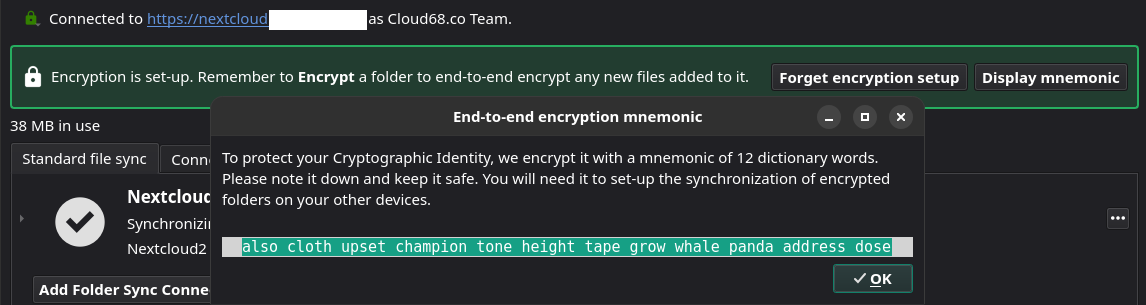](https://docs.cloud68.co/uploads/images/gallery/2026-01/BAMzCMUoxD6VszMO-upload-ce81e552a4c4ab97af6b1f2479db346a.png) Now that E2EE is set up you can test by creating an empty folder on Nextcloud and on the Nextcloud Desktop client, if you right-click the folder you will see an option "Encrypt". Only empty folders can be encrypted, and after the encryption you can start uploading data from your computer to the encrypted folder. [](https://docs.cloud68.co/uploads/images/gallery/2026-01/yXQHMAFFG66P8Ye5-image.png) [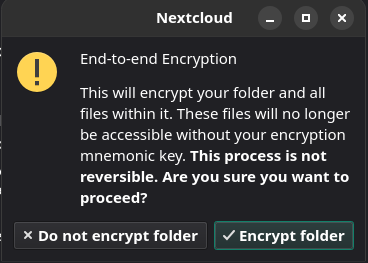](https://docs.cloud68.co/uploads/images/gallery/2026-01/Ld1XMUGSzFcZAwFQ-image.png) The encrypted folders look like this. [](https://docs.cloud68.co/uploads/images/gallery/2026-01/Btxc2yw4EjFLeSEc-image.png) And on Nextcloud it looks like this. Keep in mind that you can not see any content inside the folder on Nextcloud. You can see the data only on your Desktop client, upon decryption. [](https://docs.cloud68.co/uploads/images/gallery/2026-01/1CMEhjgxsUgPZUZI-image.png)Two important things to keep in mind: 1 - Write down or save in a password manager the mnemonic because without it, you lose access to your data. 2 - Make sure to have a full backup of the data before encrypting them so if something goes wrong you have a copy to roll back to.
# Nextcloud Mail - How to archive an email In order to move emails to Archive we first need to create a folder named Archive by going to Settings and clicking "Add a folder" [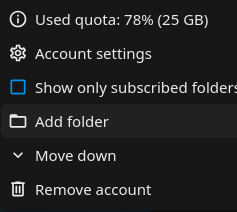](https://docs.cloud68.co/uploads/images/gallery/2026-05/ydtZODoK2RxrXpPD-image.png) Nextcloud mail app supports quick actions in order to make process faster. In order to set up an action you have to click on the three dots next to your email and click Account Settings [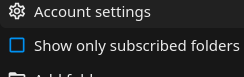](https://docs.cloud68.co/uploads/images/gallery/2026-05/X35AoKvl4OQR8DYr-image.png) Click Quick Actions: [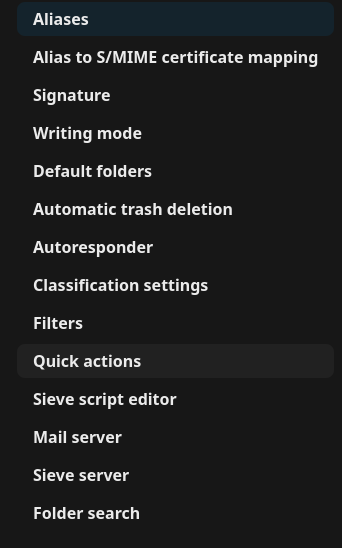](https://docs.cloud68.co/uploads/images/gallery/2026-05/34VoWm5f1sU7Wn1z-image.png) Click Add quick action: [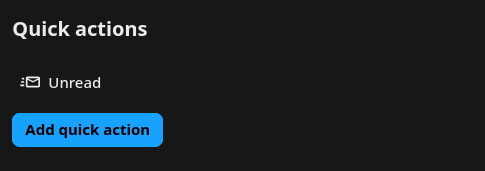](https://docs.cloud68.co/uploads/images/gallery/2026-05/Rxhmv8P8tItSMOkG-image.png) Choose a name for the quick action, example Move to Archive. Add actions by clicking "+ Add another action". Click "Move thread" and select the folder "Archive" and click Save. [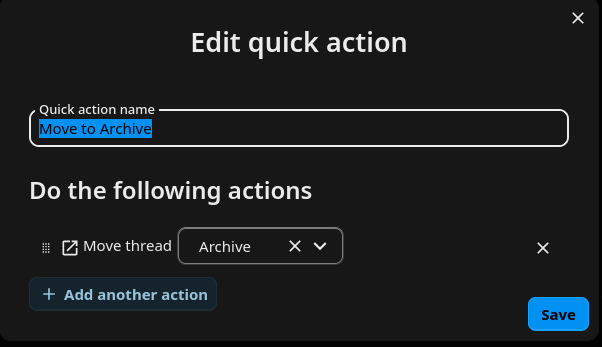](https://docs.cloud68.co/uploads/images/gallery/2026-05/3Tx9bgncYGcBKP8x-image.png) Now if you click on the three dots next to an email and then Quick Actions you can move the email to Archive just be clicking "Move to Archive" [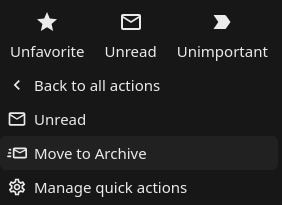](https://docs.cloud68.co/uploads/images/gallery/2026-05/EOgxFnsGt7fD2coH-image.png) Enjoy Nextcloud Mail! # Nextcloud Mail - Unread mails Within Nextcloud Mail app the only way to check Unread mail is by clicking the Search bar and clicking the button Unread. [](https://docs.cloud68.co/uploads/images/gallery/2026-05/7I0e7bWzJLfIfsUN-image.png) There is also a widget which can be added on the Dashboard that filters the Unread mail. You can click Customize on your Dashboard and add it on your Dashboard for easy access. [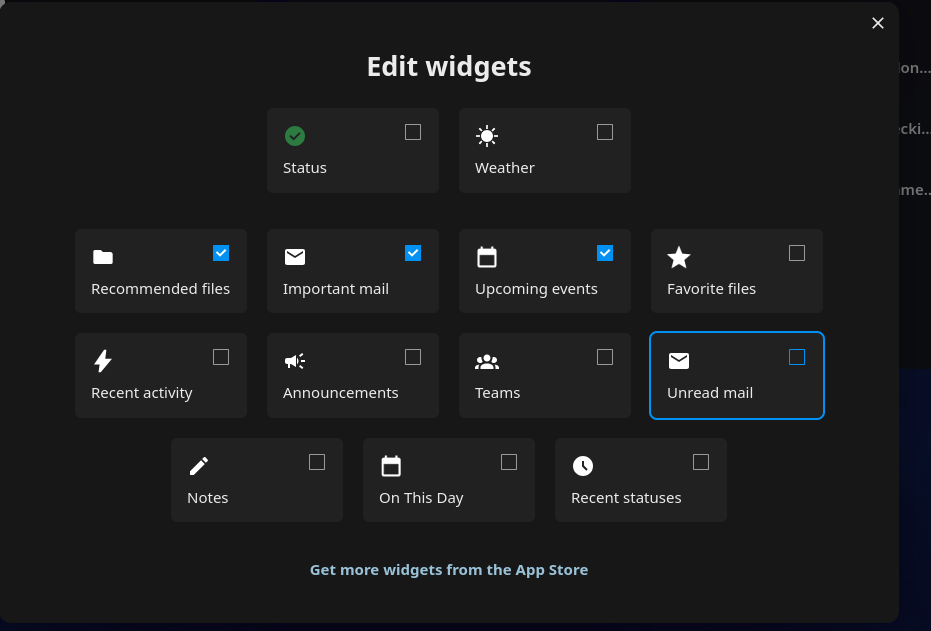](https://docs.cloud68.co/uploads/images/gallery/2026-05/TRwZdqdkWYibPrN7-image.png) # Nextcloud Calendar and Contacts on mobile devices Before we continue with different systems, Android and iOS and different ways to configure Nextcloud Calendar and Contacts, create an App Password which will be needed in later steps. To create an App Password follow this guide [https://docs.cloud68.co/books/open-source-software-instances-faqs/page/how-to-create-a-nextcloud-app-passwor](https://docs.cloud68.co/books/open-source-software-instances-faqs/page/how-to-create-a-nextcloud-app-password) ##### Setting up Nextcloud Calendar and Contacts on Android devices Follow up the detailed and very helpful guide that Nextcloud provides. [https://docs.nextcloud.com/server/21/user\_manual/en/pim/sync\_android.html](https://docs.nextcloud.com/server/21/user_manual/en/pim/sync_android.html) Backup link [here](https://web.archive.org/web/20260601140739/https://docs.nextcloud.com/server/21/user_manual/en/pim/sync_android.html). At the step where it asks for the password, use the App Password you created earlier. ##### Setting up Nextcloud Calendar and Contacts on iOS devices Follow the detailed and very helpful guide that Nextcloud provides. [https://docs.nextcloud.com/server/21/user\_manual/en/pim/sync\_ios.html](https://docs.nextcloud.com/server/21/user_manual/en/pim/sync_ios.html) Backup link [here](https://web.archive.org/web/20260601141521/https://docs.nextcloud.com/server/21/user_manual/en/pim/sync_ios.html). At the step where it asks for the password, use the App Password you created earlier. If you need support, you can reach us using our [support channels](https://docs.cloud68.co/books/tech-support-faqs/page/how-can-i-ask-for-tech-support). # Installing and configuring LibreSign To install LibreSign on Nextcloud go to Apps and install LibreSign by clicking Download and enable. [](https://docs.cloud68.co/uploads/images/gallery/2026-06/RCO2po5hlgrRRal1-image.png) After installing the app go under Administration Settings [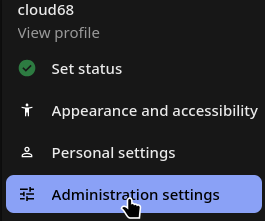](https://docs.cloud68.co/uploads/images/gallery/2026-06/MgePshchtWwSaVxv-image.png) Go to the LibreSign option on the right panel [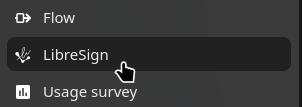](https://docs.cloud68.co/uploads/images/gallery/2026-06/zSALh3a0RvZOTNkX-image.png) Under configuration check there is a list of OCC commands which needs to be run on the server. Go to the Nextcloud directory and run the commands. [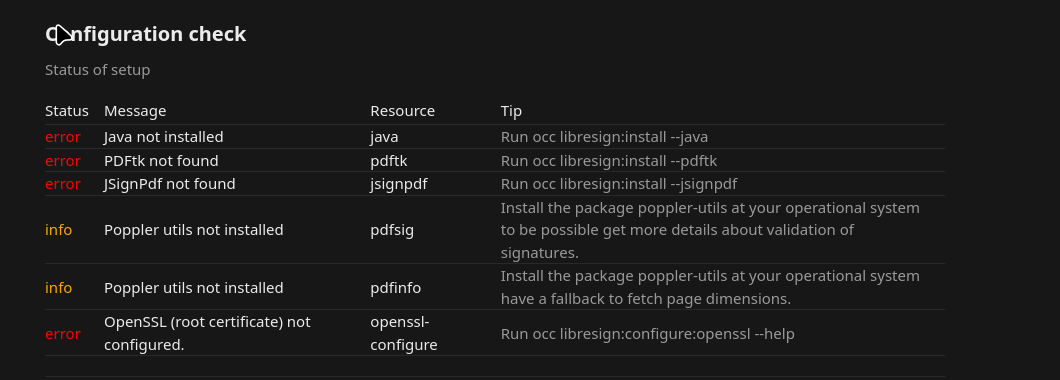](https://docs.cloud68.co/uploads/images/gallery/2026-06/FNmZCtlr5qMi2q9N-image.png) After running all OCC commands it will look like this [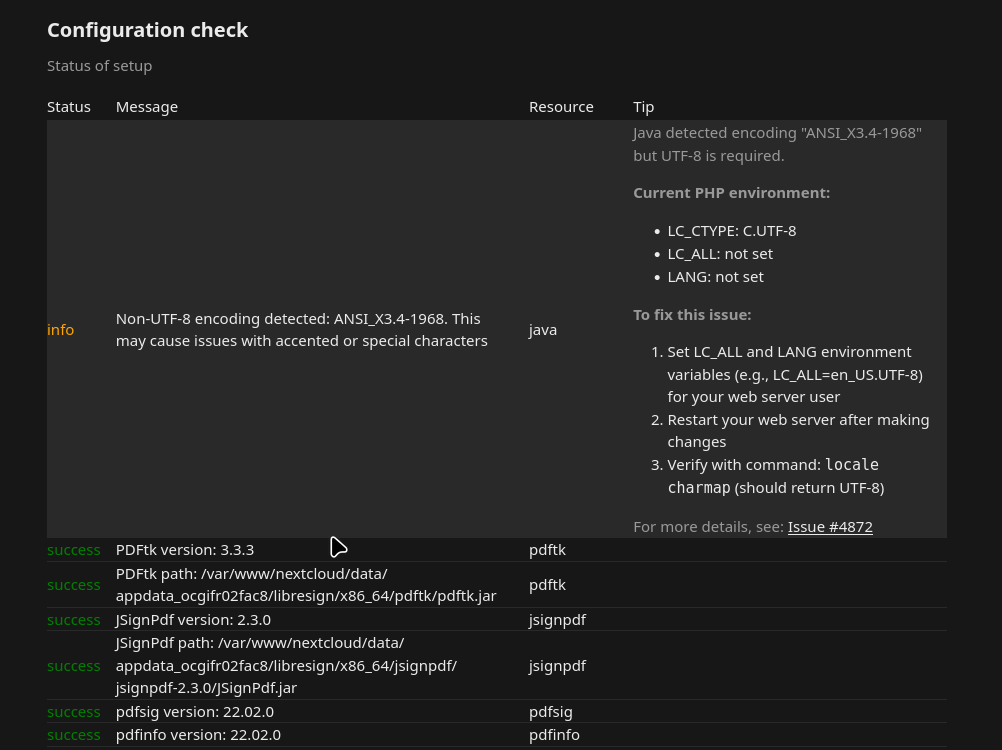](https://docs.cloud68.co/uploads/images/gallery/2026-06/R84ovV6tahYsHGJl-image.png) Next step is to configure a root certificate using either company name or if it is a single user instance the users name. [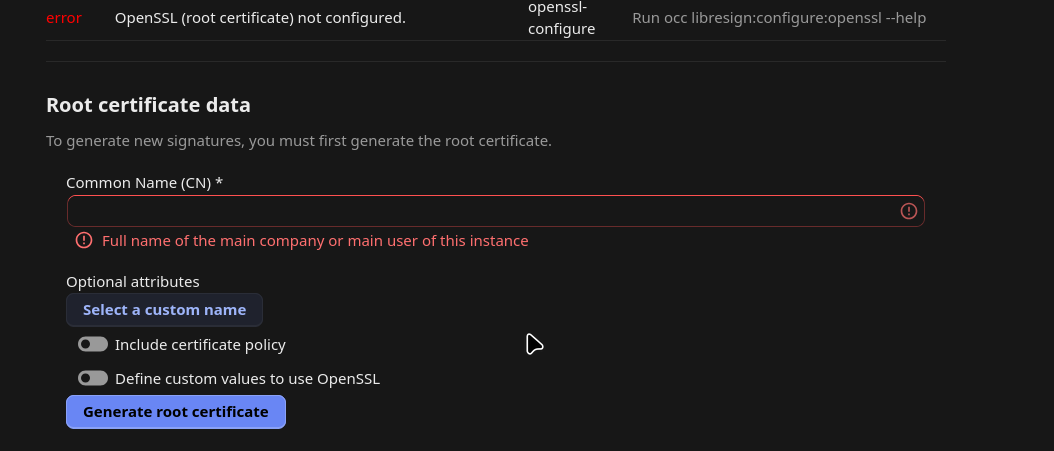](https://docs.cloud68.co/uploads/images/gallery/2026-06/CBFwae5P2KfSA0WH-image.png) Under identification choose Click to Sign [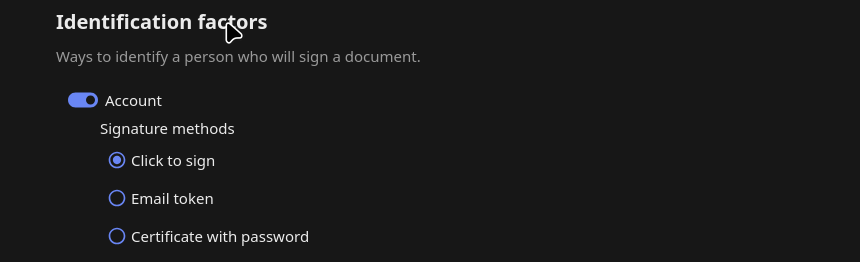](https://docs.cloud68.co/uploads/images/gallery/2026-06/1uHi5gESSOcQ12QH-image.png) That's it! # Nextcloud retention and tagging ##### Retention Nextcloud includes a retention feature that allows files to be automatically deleted after a defined period of time. This is done by applying a collaborative tag to files and configuring a rule that removes those tagged files once they reach a certain age. This is possible by using the application “Retention”. [](https://docs.cloud68.co/uploads/images/gallery/2026-07/2wV33UpYpUc0E4sQ-image.png) For example, you can define a rule where any file tagged as “Temporary” is automatically deleted 14 days after its creation. There is also an option to notify the file owner one day before deletion, so they have time to review or retain the file if needed. **Retention rules can be based on two types of file age:** - Creation date (when the file was uploaded or created in Nextcloud) - Last modification date (when the file was last changed) It is important to note that retention tags should be configured as restricted or invisible. If tags are publicly editable, users may remove them, which would prevent the retention rule from being applied. Full documentation about Retention can be found here: [https://docs.nextcloud.com/server/stable/admin\_manual/file\_workflows/retention.html ](https://docs.nextcloud.com/server/stable/admin_manual/file_workflows/retention.html) ##### Tagging To make this process reliable, automatic tagging can be used. This ensures that files are tagged as soon as they are uploaded, without relying on users to manually apply tags. These tags can then be used by retention rules to enforce cleanup policies consistently. This is made possible via the app “Files automated tagging” [](https://docs.cloud68.co/uploads/images/gallery/2026-07/jA2jESx01F3YYaC3-image.png) Documentation regarding automatic tagging can be found here: “[https://docs.nextcloud.com/server/stable/admin\_manual/file\_workflows/automated\_tagging.html](https://docs.nextcloud.com/server/stable/admin_manual/file_workflows/automated_tagging.html)” # Nextcloud Mail search Nextcloud Mail App has two search options. The first one appears at the top of the inbox but is not very powerful. [](https://docs.cloud68.co/uploads/images/gallery/2026-07/j54lFUhDGW8nfHto-image.png) By clicking the three lines on the right corner of the "Search in folder" bar, advanced search pops up which is much more powerful. [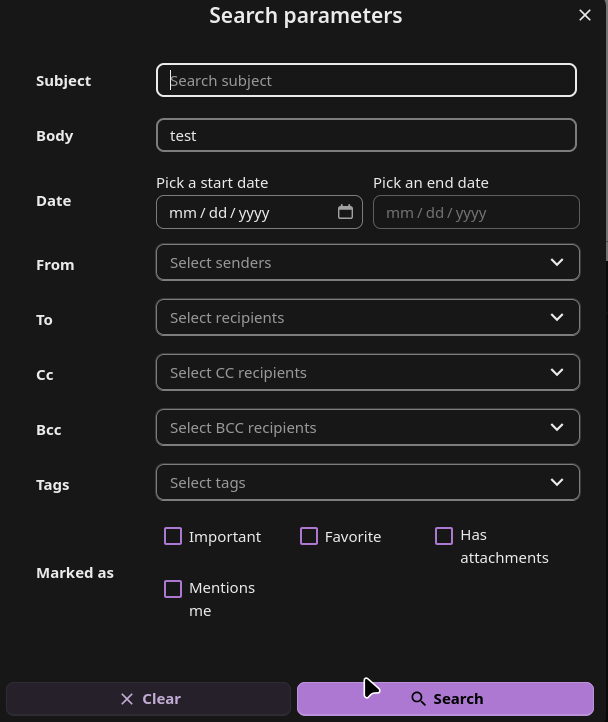](https://docs.cloud68.co/uploads/images/gallery/2026-07/y34uRsjPtxTfQ2i5-image.png) To make search even more powerful, go to Account settings by clicking the three dots next to your email address [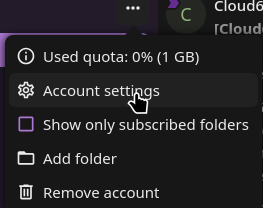](https://docs.cloud68.co/uploads/images/gallery/2026-07/kj4W4GOAneifUkHg-image.png) Scroll down to the bottom and enable Mail body search. [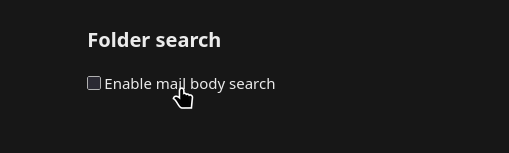](https://docs.cloud68.co/uploads/images/gallery/2026-07/1Ia0bQA8o6xVwl4z-image.png) Enjoy your improved search in Nextcloud Mail! # Nextcloud Mail Signature On Nextcloud Mail app you can add your signature by going to Account Settings. [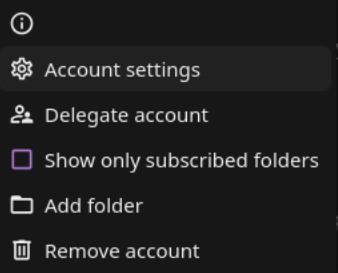](https://docs.cloud68.co/uploads/images/gallery/2026-07/hoBnXVPYnjWnoZwq-image.png) Under the tab Signature [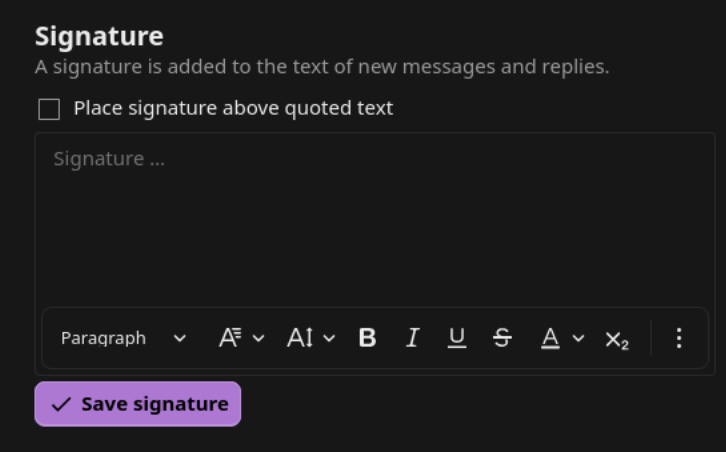](https://docs.cloud68.co/uploads/images/gallery/2026-07/WMjm9MkrHRaci918-image.png) Our templated proposal to be used as a Signature while migrating below: \[First Name\] \[Last Name\] \[Job Title\] \[email address\] \[Optional: office hours / days closed note\] \[Organization Name\] is migrating off Google! During this transition, it's possible that we may miss some emails or calendar invitations. Please don't hesitate to reach out again if I'm slow to respond. Thank you for your patience as we adjust to our new systems!