How to create a user on Keycloak
In order to create a new user on Keycloak follow the steps below.
1. Visit Admin Dashboard:
1. Visit Admin Dashboard:
- Go to: Your Keycloak URL
- Log in using the admin account.
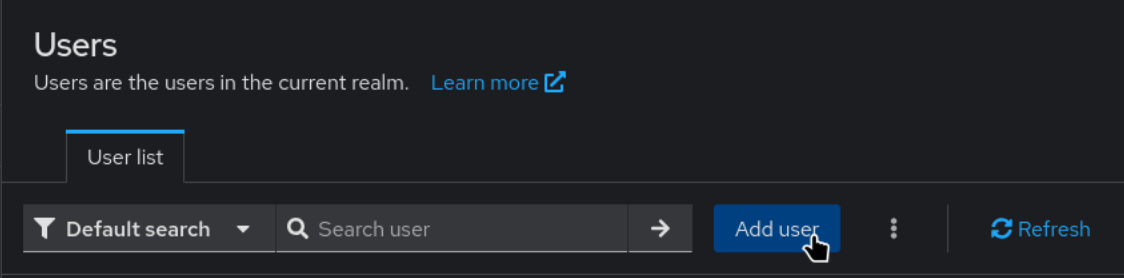
2. Create a New User:
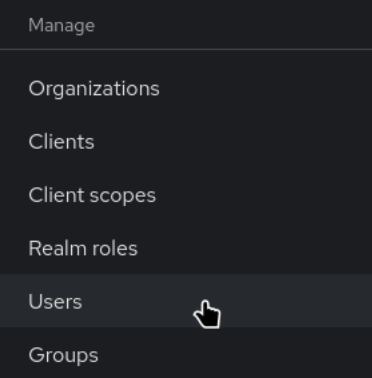
- Click on Add User.
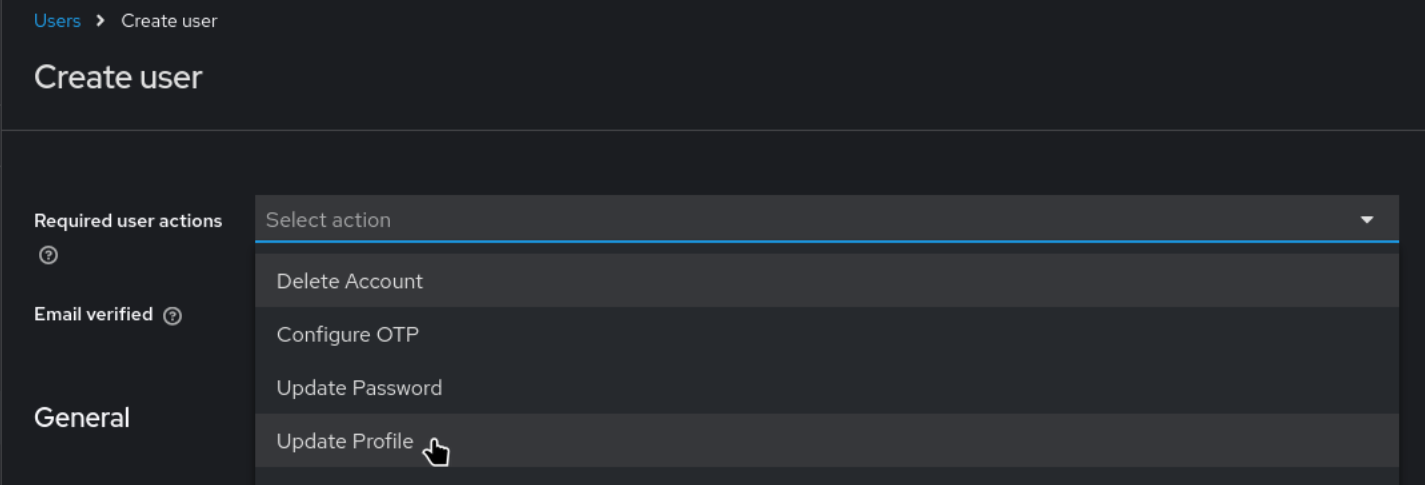
- Under Required user actions, select Update Profile.
In case user impersonation is required leave this empty.
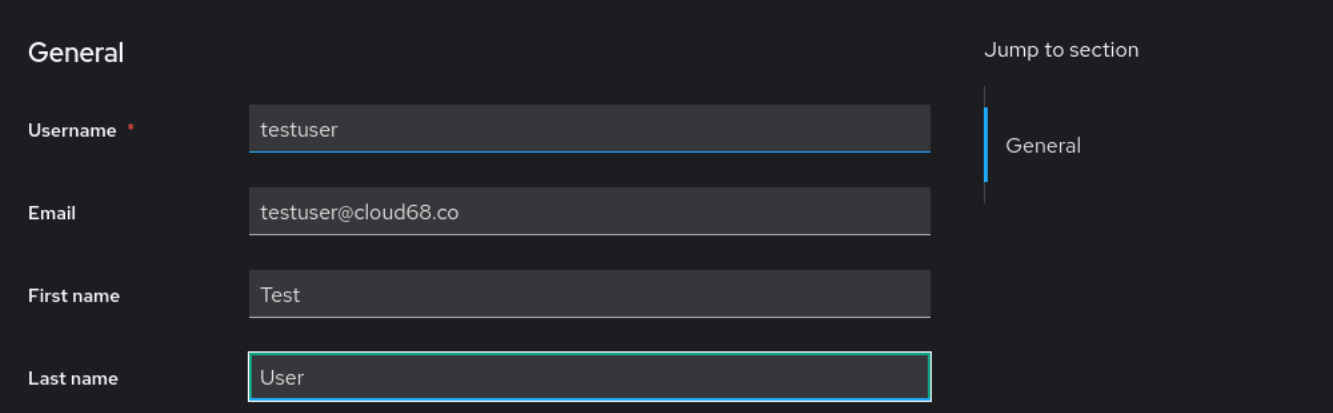
- Set Email Verified to ON.

- Fill in the Username, Email, First Name
- Click Join Groups and add the user to the group it belongs.
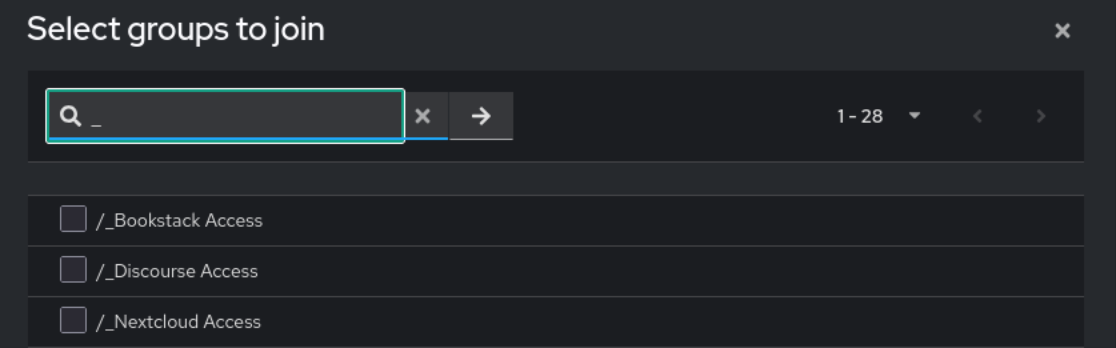
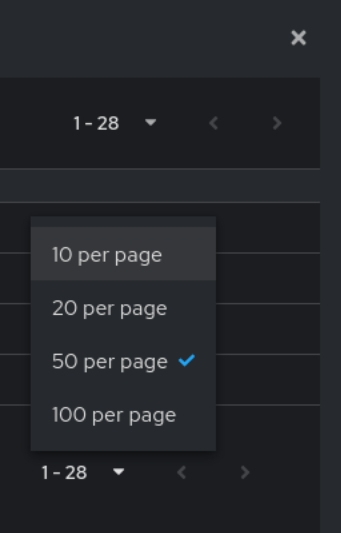
If you do not see all the groups increase the number of items that are displayed.
- Click Create

3. Send Password Reset Request:
- Go to Users.

- Click on the newly created user.

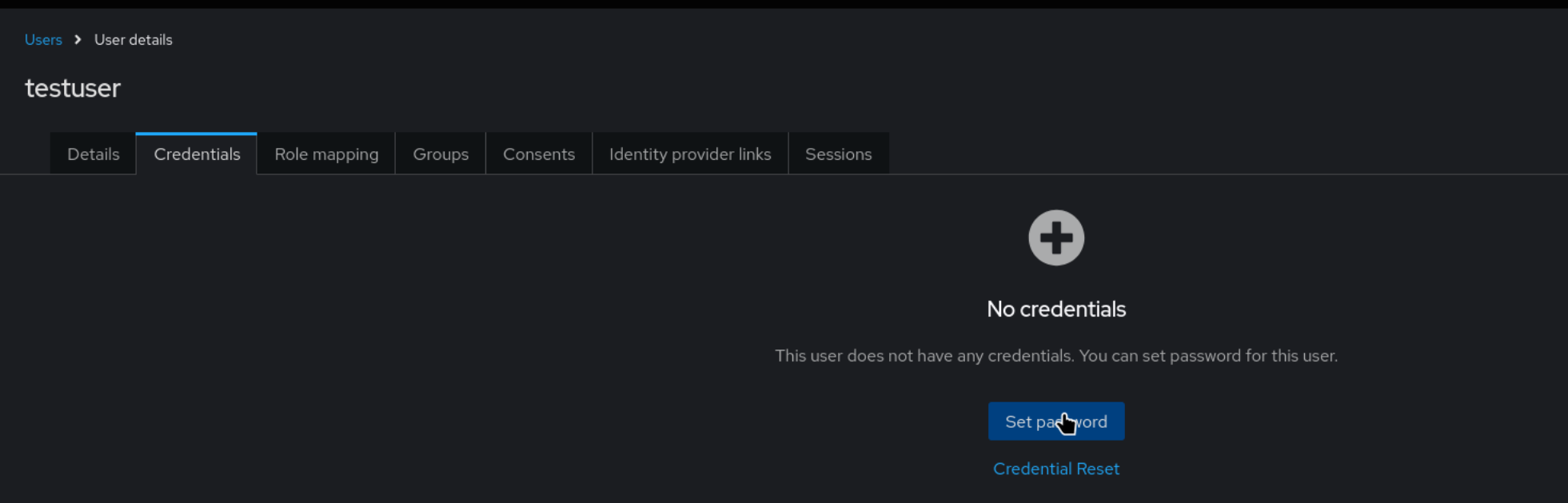
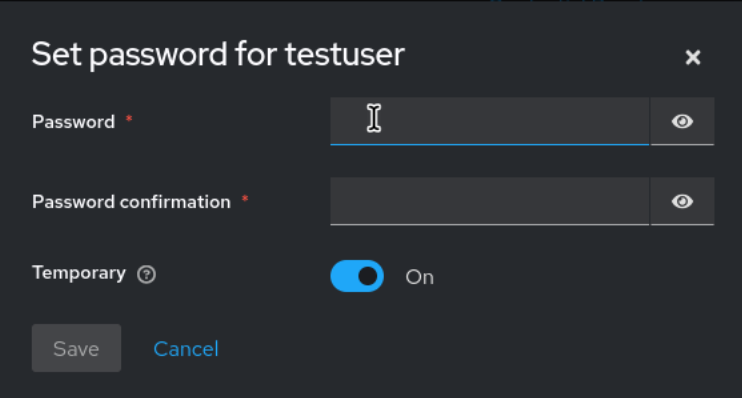
- Set a random Password and click Save.
In case user impersonation is required toggle "Temporary" to Off so it does not require setting up a password when impersonating.
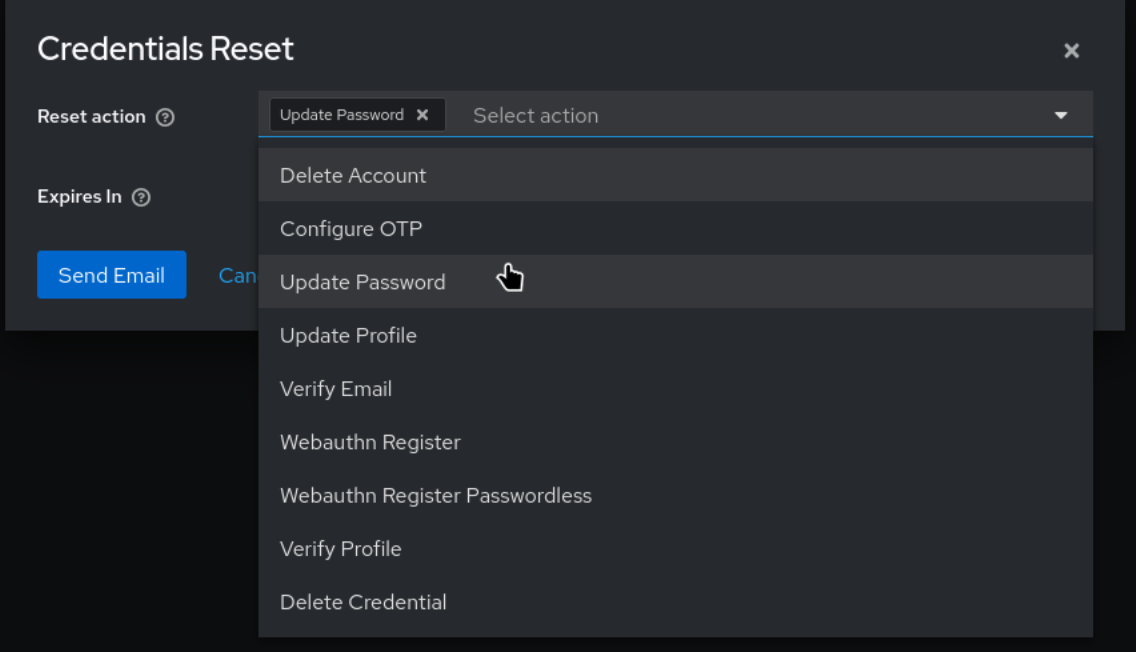
- Click Credentials Reset.

- On Reset action choose Update Password.
In case you followed the user impersonation steps, on this step choose Update password and Update Profile
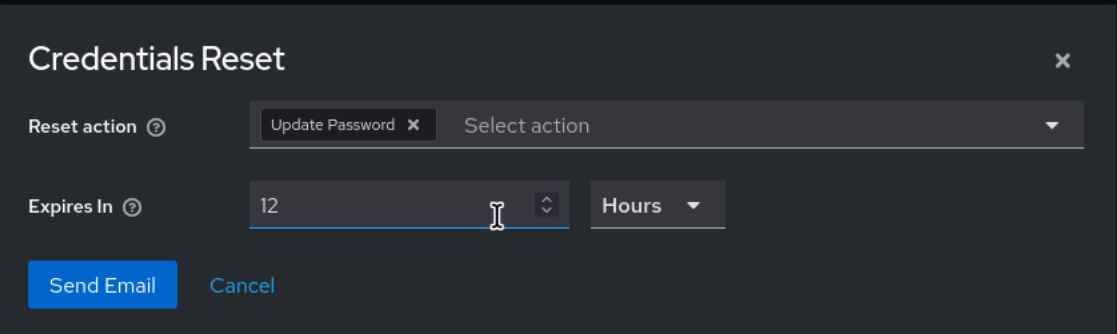
- Choose an expiration time for the reset request and click Send.
- Notify the user that they now have an account and will receive an email to reset their password and update their profile.
In case you do not know your Keycloak URL reach out to our support team.
In case you do not know your Keycloak URL reach out to our support team.