
Nextcloud data encryption with Cryptomator
Cryptomator allows you to store encrypted vaults inside your Nextcloud, so you are basically using Nextcloud as remote storage. The data is encrypted locally and only decrypted locally through the Cryptomator app.
It works well and is easy to set up, but by using it, Nextcloud becomes just a remote drive. You lose all collaboration, no file sharing, no co-editing, nothing that depends on the Web UI.
**This tutorial will show you step by step how to create a Cryptomator vault on Nextcloud.**
Before starting with Cryptomator you have to add your Nextcloud account your Nextcloud Desktop client and set up the local folder where the data will be stored. Example below:
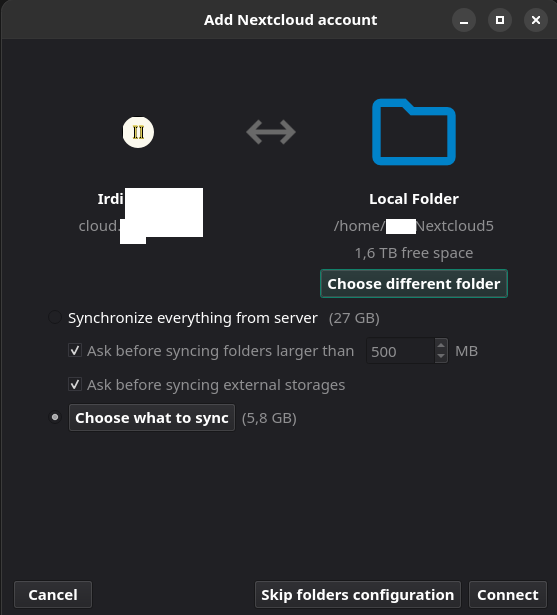
By clicking the folder icon in the top right corner of the client you will go inside the folder where the data is stored.

Create a folder and name it Cryptomator. In matter of seconds you will see the folder appear on Nextcloud.

Now that we have prepare Nextcloud, we continue with the Cryptomator steps.
Download and install Cryptomator. https://cryptomator.org/for-individuals/
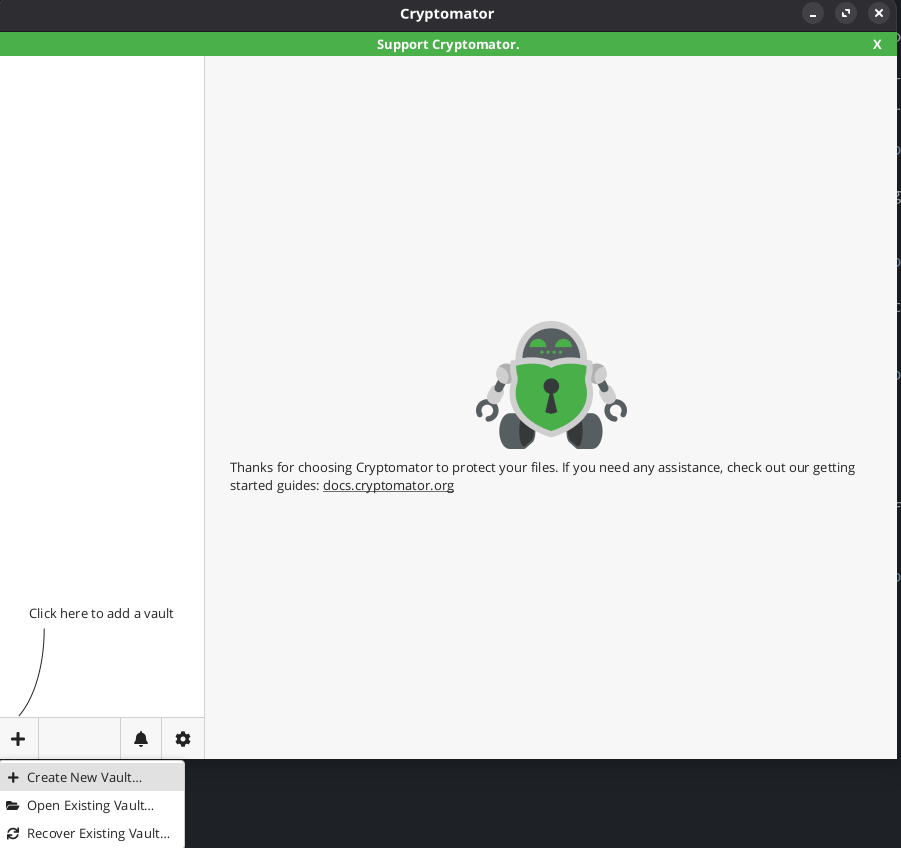
After installing Cryptomator, open it and click the + sign in the bottom left corner to add a vault and click Create New Vault.
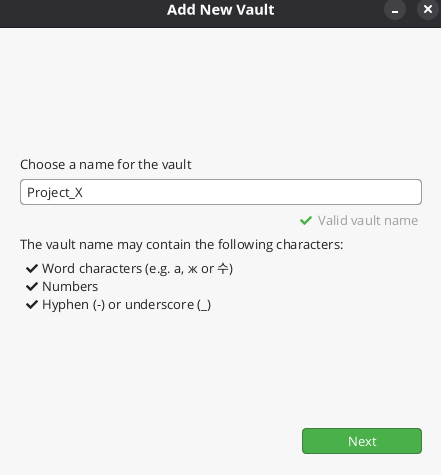
Choose a name for the Vault.
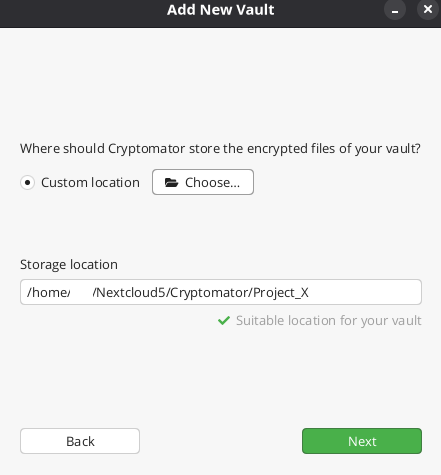
Next click Choose custom location and Choose the Cryptomator folder you created earlier.
Next step is to create a strong password. Do not forget to Yes on the recovery key because without it, if you lose your password you lose access to your data.
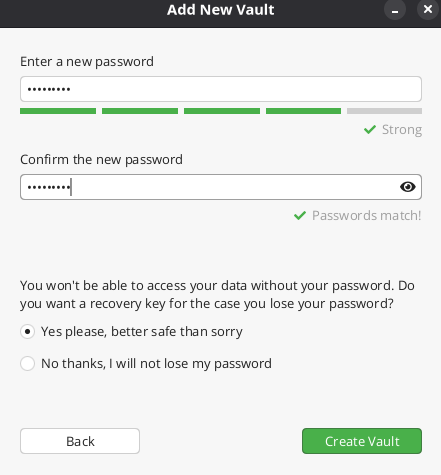
After setting up your strong password, click Create Vault.
Make sure to write down and save the recovery key.
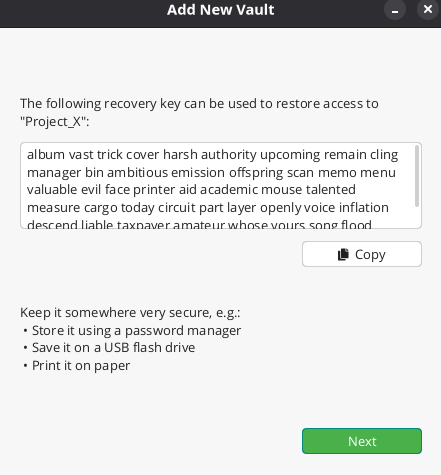
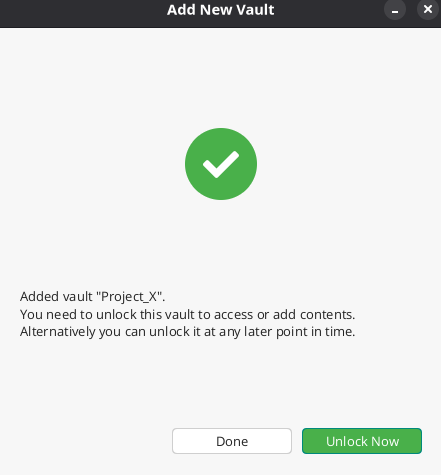
Once you save the recovery key, click unlock now.
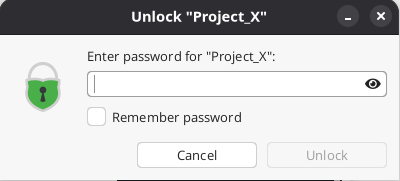
And you will be asked to use your password.
Once the vault is unlocked you will see green button, Reveal Drive. When clicked it opens the folder that you will use to upload the data. Data uploaded there is synced to Nextcloud.
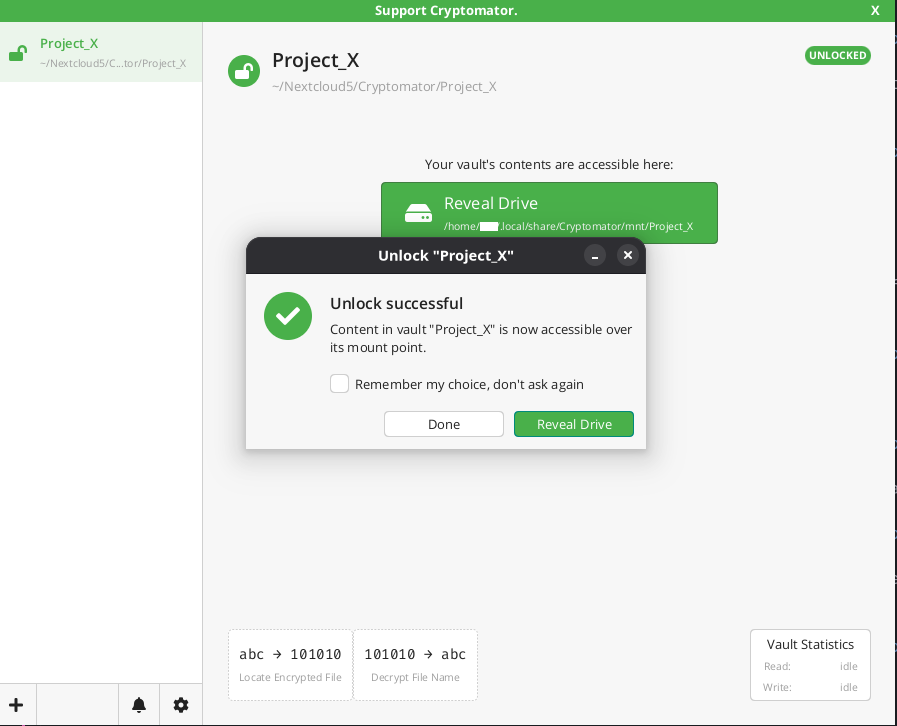
When clicked it opens the folder that you will use to upload the data. Data uploaded there is synced to Nextcloud.

Below you can see how the Test document upload on the local folder above looks on Nextcloud upon encryption.
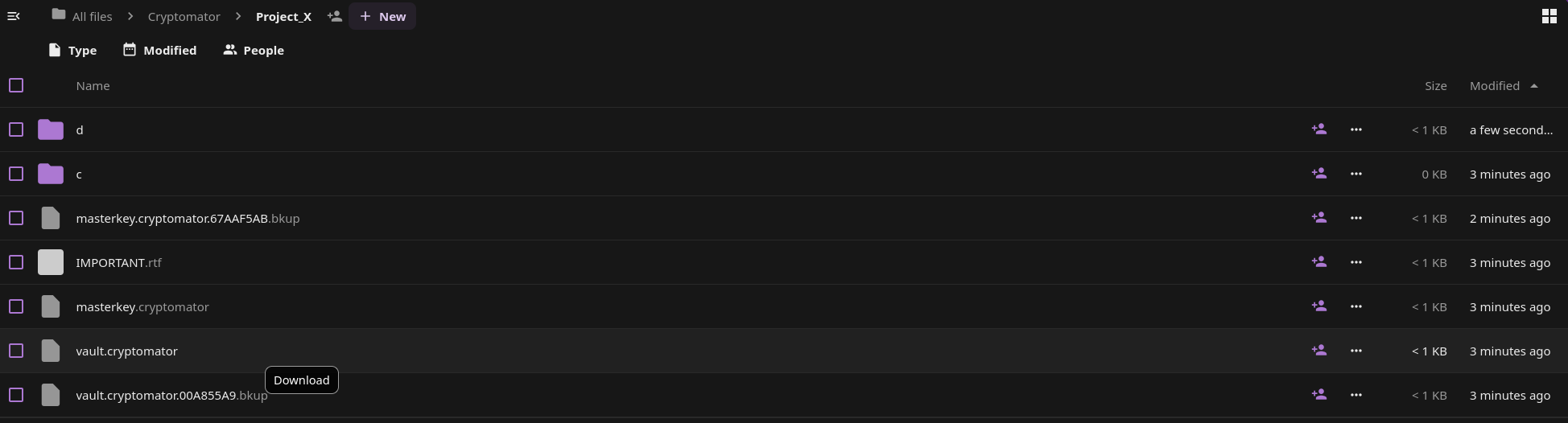
Cryptomator uploads encrypted data to Nextcloud and you can decrypt them locally to see and use.
Two important things to keep in mind:
1 - Write down or save in a password manager the mnemonic because without it, you lose access to your data.
2 - Make sure to have a full backup of the data before encrypting them so if something goes wrong you have a copy to roll back to.