
Nextcloud data encryption with E2EE
After you request E2EE encryption, and we enable it, you can check it under your Personal Settings - Security. It will look like the pic below.
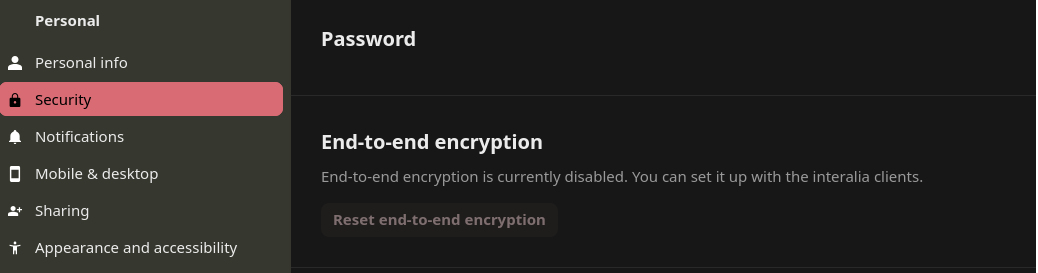
In order to activate the E2EE encryption you will have to restart your Nextcloud Desktop Client.
Once the Nextcloud client is restarted you will see "Set up encryption" as seen in the screenshot below
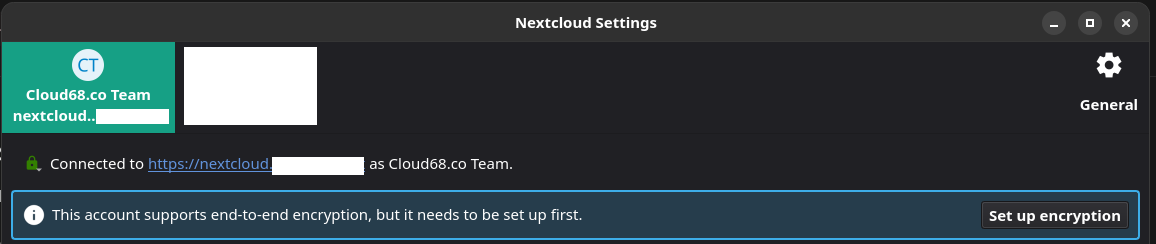
Upon clicking "Set up encryption" it will create an End-to-End encryption mnemonic which you need to save in password manager or write it down. If you lose this you lose access to the encrypted data.
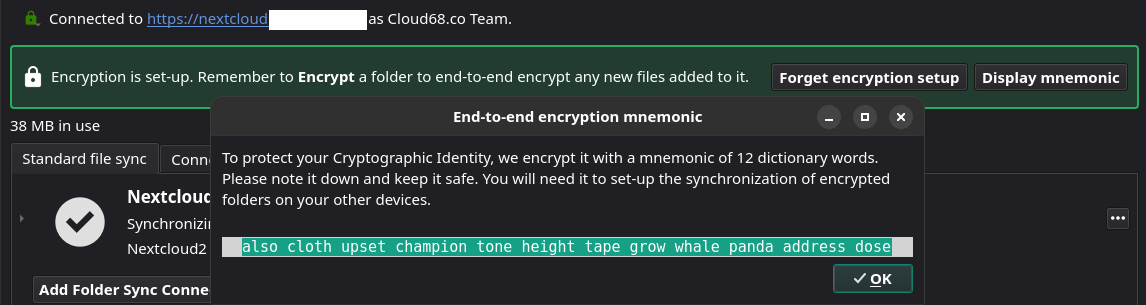
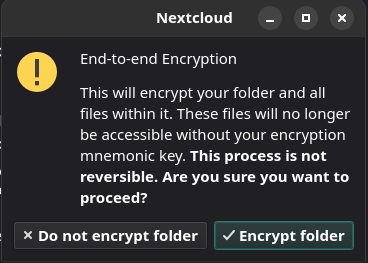
Now that E2EE is set up you can test by creating an empty folder on Nextcloud and on the Nextcloud Desktop client, if you right-click the folder you will see an option "Encrypt". Only empty folders can be encrypted, and after the encryption you can start uploading data from your computer to the encrypted folder.

The encrypted folders look like this.

And on Nextcloud it looks like this. Keep in mind that you can not see any content inside the folder on Nextcloud. You can see the data only on your Desktop client, upon decryption.

Two important things to keep in mind:
1 - Write down or save in a password manager the mnemonic because without it, you lose access to your data.
2 - Make sure to have a full backup of the data before encrypting them so if something goes wrong you have a copy to roll back to.
No comments to display
No comments to display